
How to Scan a Passkey QR Code (and What to Do When It Appears on the Wrong Device)
How to scan a passkey QR code to sign in on another device, which app to use, why Bluetooth is required, and what to do when the code appears on the wrong device.
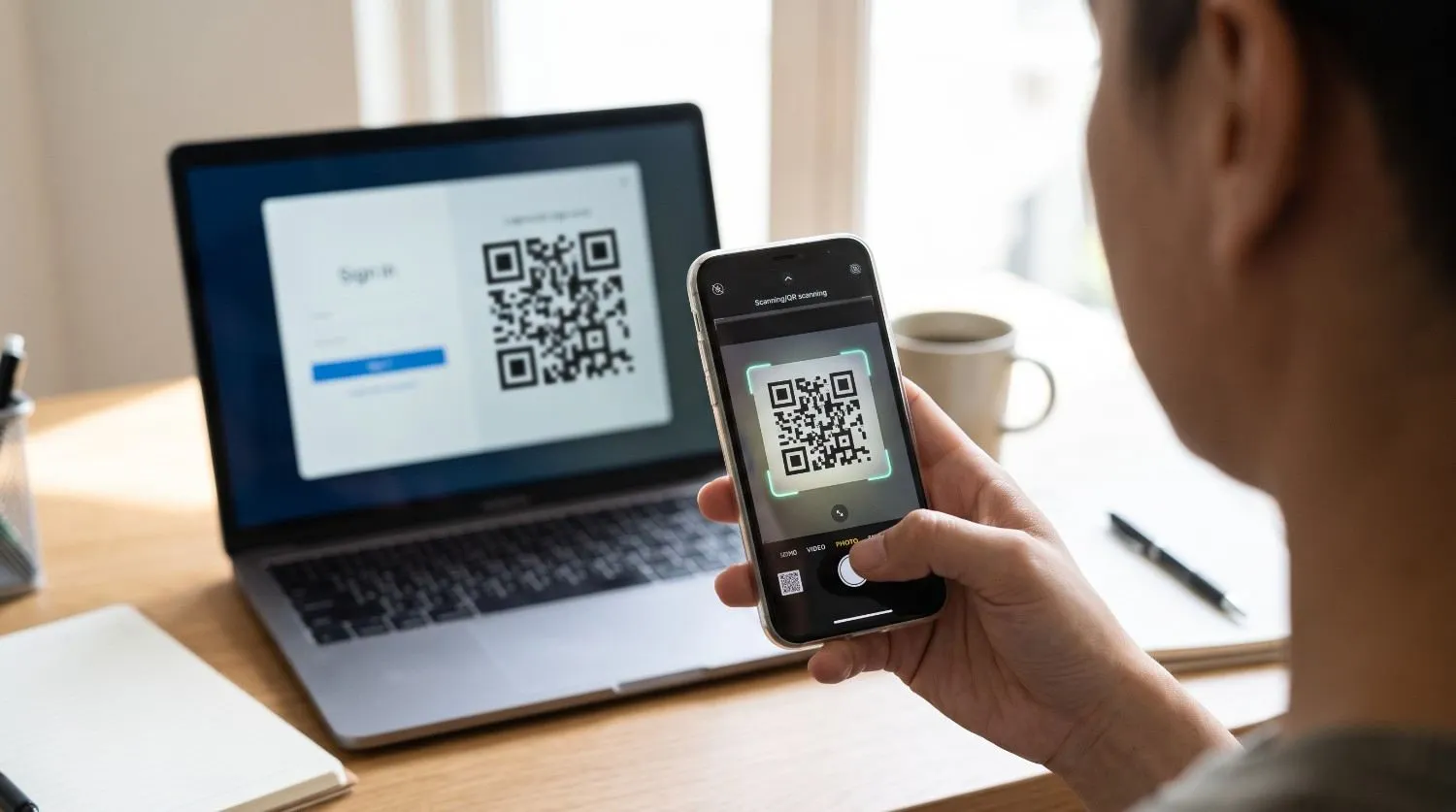
You click sign in to Gmail, a QR code fills your laptop screen, and the instruction says to scan it with your phone. Simple enough, until the code appears on the phone you are already holding and asks you to scan it with a phone. Try to screenshot it and the operating system blocks you. There is no way forward on screen.
That dead end is the most common passkey complaint there is, and it has nothing to do with your camera. This guide covers the normal flow first, which takes about twenty seconds once you know where the buttons are, then the failure that strands people, then what the code actually is. The last part matters more than it sounds, because this is the one square on your screen that a scammer genuinely cannot use against you, and the reason why is worth understanding.
How to Scan a Passkey QR Code: What You Need First
Three things have to be true before the code will work. Google publishes the requirements, and most failed attempts trace back to one of them.
| Requirement | Detail |
|---|---|
| The passkey already exists on your phone | Scanning does not create a passkey. It uses one you made earlier |
| Bluetooth is on, both devices | Not optional. It is how the two devices prove they are in the same room |
| Supported versions | Phone on Android 9 or iOS 16 and up. Computer on Windows 10, macOS Ventura or ChromeOS 109 and up |
Browser support runs to Chrome 109, Safari 16, Edge 109 and Firefox 122 or newer. Your phone also needs a screen lock turned on, and on Apple devices iCloud Keychain has to be enabled.
One more thing worth knowing before you start: on some operating system and browser combinations, passkeys will not work in private or incognito windows at all.
The Steps, Start to Finish
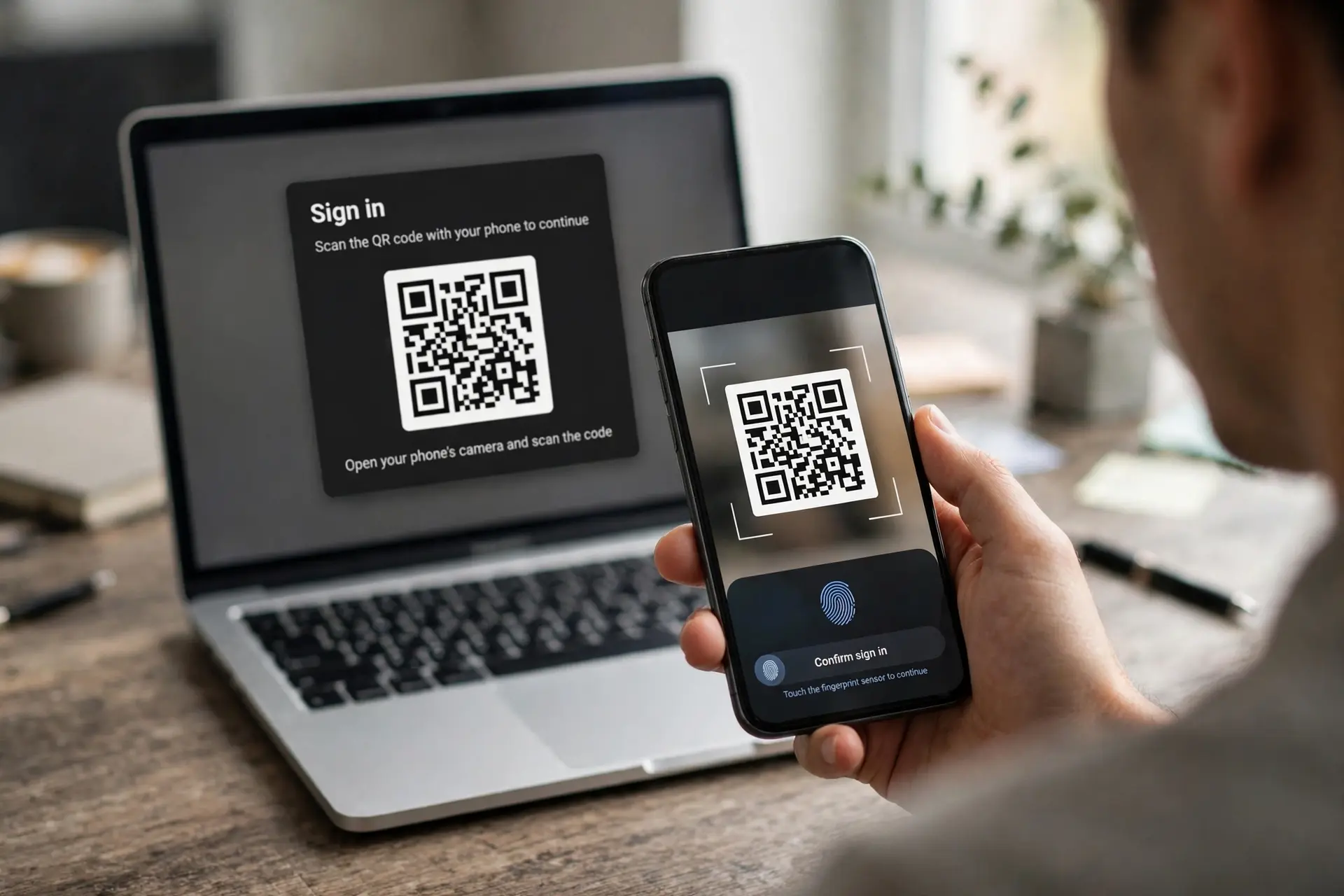
On the computer
- Open the sign in page and enter your username.
- Look for the passkey route. It is in a different place in every browser, which is a large part of why people struggle:
- Chrome: select the username field, then Use passkey from another device
- Edge: right click the username field, then Use passkey from another device, then Use a phone, tablet or security key
- Google accounts: click Try another way, then Use your passkey
- Any browser, fallback: Sign in options, then Face, fingerprint, PIN or security key
- Choose the phone or tablet option when asked which device holds the passkey.
- A QR code appears.
On your phone
- Point your phone at the code and scan it.
- Tap Use passkey to sign in on Android, or Sign in with a passkey on iPhone and iPad.
- Confirm with your fingerprint, face or PIN.
- Watch the computer. It should show a connected state and then sign you in.
The whole exchange is over in seconds once both devices find each other. If the computer sits waiting at the connecting stage, that is a Bluetooth problem rather than a scanning problem, and there is a section on it below.
Which App Should You Scan With?
This question gets asked constantly and attracts a lot of confident wrong answers, so here is what the primary sources actually say.
Your phone's native camera app is the reliable choice, and the one both Google and the FIDO Alliance name first. Open the camera, point it at the code, tap the prompt that appears.
Beyond that you have more options than you might expect. Google's own documentation says to scan "with your phone's camera or QR code scanner app." The FIDO Alliance goes further and lists the native camera, QR code scanner apps, Google Assistant on Android, and Control Center on iOS as working approaches.
Why do scanner apps work at all, when this is not an ordinary web link? Because of what the code contains. It holds a FIDO:/ URI rather than a web address, and a well behaved scanner app hands that URI to the operating system, which recognises the scheme and takes over. An app that instead tries to open it as a web page will fail, which is where the occasional "my scanner app did nothing" report comes from.
So: use the camera. If a scanner app you already trust picks it up and the system dialog appears, that works too. You do not need to install anything new, and you certainly do not need a special passkey scanning app, because no such thing exists.
Google and Gmail Accounts
Google is where most people meet this screen for the first time, usually when signing in to Gmail on a computer that has never seen their account.
On the Google sign in page, enter your username, click Try another way, then Use your passkey. The code appears. If you have a hardware security key instead of a phone, you get the option to pick it at this point.
Scanning it with an iPhone or iPad
Open the camera app and point it at the code on the computer. Tap the notification that appears, then tap Sign in with a passkey. Confirm with Face ID, Touch ID or your device passcode.
Your iPhone needs iOS 16 or later with iCloud Keychain switched on. Without iCloud Keychain the passkey has nowhere to live, which is a common reason the option never appears in the first place.
Scanning it with an Android phone
Open the camera, point it at the code, tap the prompt, then tap Use passkey to sign in. Confirm with your fingerprint, face unlock or PIN.
Android 9 or later with a screen lock enabled. On the first run Android also asks whether to save the code for future use, which is worth accepting if you expect to sign in on that computer again.
A Google quirk worth knowing
If you sign out of your Google account on an Android device, you can sign back in with the passkey for about six hours. After that window you need a different method, and when you do sign in again the device quietly generates a fresh passkey while the old one expires.
Google also notes that a newly created passkey may take up to seven days before it becomes available at sign in, unless you already have a trusted passkey or security key to vouch for it.
Microsoft, TikTok and Other Accounts
The flow belongs to the browser and operating system rather than the website, so it looks broadly the same everywhere. What changes is the wording of the button that starts it.
Microsoft accounts use the most buried route of the lot. In Edge, right click the username field, choose Use passkey from another device, then Use a phone, tablet or security key. In Chrome, select the field and choose Use passkey from another device. Either way, pick iPhone, iPad, or Android device next, then scan. Microsoft's documentation is also the clearest of the major vendors about Bluetooth being required on both devices.
TikTok and other apps that have adopted passkeys follow the same pattern, because none of them control this interface. Look for a sign in option naming a passkey, a security key, or another device. If an app shows you a code with no explanation, it is asking for the device where your passkey already lives, exactly as Google and Microsoft do.
This is also why a service's own help page may not match what is on your screen. The site cannot change these dialogs, and it has no way of knowing whether you intend to use cross device sign in at all.
"It Wants Me to Scan a Code on the Same Phone I Am Using"
Here is the one that drives people genuinely mad, and the fix is not where anyone looks.
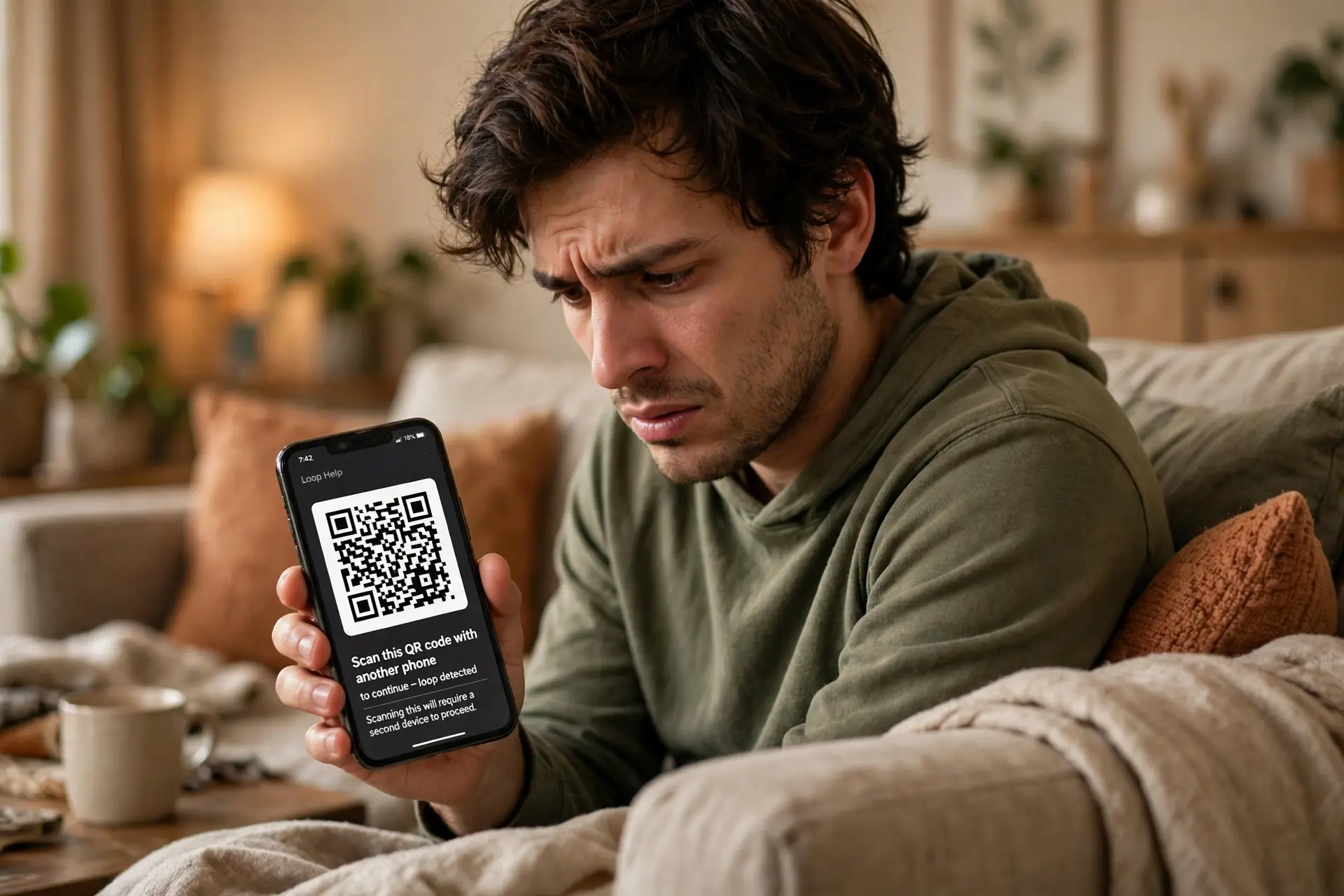
The scenario: you are on your iPhone, you try to sign in to a site, you choose the passkey option, and it presents a QR code asking you to scan it with a device running iOS 16 or later. You are holding exactly such a device. It is the one displaying the code.
Why you cannot screenshot your way out
The natural instinct is to screenshot the code and scan the image from your gallery. The operating system blocks the screenshot. That is deliberate rather than a bug, and the block is doing its job: a passkey handshake is supposed to be between two devices in the same place, so capturing and replaying the image is exactly the behaviour the design prevents.
Holding down on the code does not produce a scan option either. There is no hidden trick here.
What is actually wrong
The prompt is not asking you to use this phone. It is asking for the device that holds the passkey, and the system has worked out that the passkey is not on the phone in your hand.
Almost always that means the passkey was created on a device you no longer have. People hit this after selling an old phone, switching between iPhone and Android, or wiping a device without clearing its credentials first. The account still lists a passkey. The hardware holding it is gone. So the system offers the only route it knows, a QR code for a device that no longer exists.
How to clear it
Remove the orphaned passkey from the account, then sign in normally with your password.
For a Google account, the path is: open google.com, click your profile initial, choose Manage your Google Account, open Security, then scroll to your sign in methods and delete the passkey listed there. You can also go directly to your passkey settings page from Google's account options.
A few other things people report having worked, with the honest caveat that these are community fixes rather than documented ones. Some users resolved it by turning two step verification off and back on. One reported that updating iOS cleared it. If your phone has several password managers installed and none is authorised to handle passkeys, check Settings, General, Autofill and Passwords and make sure autofill is on with a manager selected that supports passkeys, because a phone with no passkey capable manager enabled will keep pointing you at other devices.
If you removed a passkey and the prompt still appears, check any third party credential manager you use. The entry may still be sitting there.
Why Bluetooth Has to Be On, and What It Does Not Do
Bluetooth is mandatory, and the reason is more interesting than "because the devices need to talk."
Bluetooth Low Energy here performs one job: a proximity check. After your phone reads the code, it sends out a BLE advertisement that the computer picks up, and that exchange proves the two devices are physically near each other. Bluetooth 4.0 or higher is required for this.
What Bluetooth does not do is carry your authentication data. None of it travels over Bluetooth. The FIDO Alliance is explicit that the security of the sign in does not rest on Bluetooth's own security properties, with the hybrid transport layering standard cryptography on top regardless.
Worth noting: Google's own help page for this flow mentions Bluetooth only as a passing tip, while Microsoft's documentation states plainly that it must be enabled on both devices. If you followed Google's steps and stalled at the connecting stage, that gap in the instructions is very likely why.
What the Code Actually Contains
Not a link. This is the part that separates it from every other code you scan.
Inside is a FIDO:/ URI carrying a CBOR encoded handshake: a one time public key generated by the computer, a random secret, and parameters describing which tunnel services that computer knows about. The website you are signing in to plays no part in generating it. The site already handed its challenge to the browser, and the signed answer comes back later by a different path.
Because the payload is a URI with a scheme the operating system claims, rather than an https address, there is nothing for a browser to open and nothing for a person to read.
Where the Real Exchange Happens
Once proximity is confirmed, both devices connect to a tunnel service run by the platform vendor, Google or Apple depending on your hardware.
The computer passes the website's challenge through that tunnel. Your phone signs the challenge using the passkey's private key, which never leaves the phone at any point. The signature travels back through the tunnel, the computer hands it to the website, and the website verifies it against the public key it already holds.
The tunnel relays encrypted traffic and cannot read what passes through it. The vendor operating it learns nothing about what you signed in to.
Why a Forwarded Passkey QR Code Cannot Phish You
Everything you have been told about QR codes says to never scan one that arrives from a stranger. This is the exception, and understanding why is genuinely useful.
Picture the attack. Someone starts a sign in to your account on their own computer, reaches the QR screen, screenshots the code and emails it to you with an urgent message. You scan it. On an ordinary QR code that would be the end of the story.
Here it fails. Your phone reads the code and then looks for the Bluetooth advertisement from the computer that generated it. That computer is in another building, another city, another country. No proximity, no handshake, no sign in. The session identifier is single use as well, so a captured code cannot be replayed later.
The attacker would need to be physically beside you while you scan, at which point they have much easier options.
This is why the screenshot block exists, and it is the clearest illustration of what makes passkeys phishing resistant. The security is not in keeping the code secret. The code can be photographed, forwarded and published, and it still will not sign anyone in.
After the First Time: The Code You Will Not See Again
A detail most guides omit and users appreciate: the QR step is usually a one off.
Google documents that the next time you sign in using the same computer and phone combination, you get a notification on your phone automatically instead of a code to scan. The devices remember each other.
On Android there is an extra prompt the first time through, offering to save the QR code for future use rather than skipping it. FIDO's own user research found people liked that option specifically because it removed the repeated scanning step.
So if the flow feels clumsy the first time, it generally will not be the second.
When the Scan Fails: What Actually Goes Wrong
Industry benchmark data on this flow is unflattering, and it is useful because it tells you which failures are common rather than exotic.
Only around 29 percent of people who reach the browser prompt actually get as far as scanning the code. Roughly seven in ten abandon at that screen, and in FIDO Alliance testing about half of participants said having to fetch a second device put them off. Among Windows users shown the cross device prompt, about 34 percent decline it outright, most likely because their phone is not within reach.
Of the attempts that do fail on Android, the breakdown is instructive:
- User cancellations: 44 percent. People back out mid flow.
- Credential not found: 32 percent. The passkey is not on that phone. This is the orphaned passkey problem again.
- Connection issues: 17 percent. Usually Bluetooth or network.
Practical checks, in the order worth trying:
- Bluetooth on, both devices. The single most common fix.
- Both devices online. The tunnel needs internet at the connecting step.
- Right phone. Is the passkey actually on the device you are scanning with?
- Not in incognito. Some browser and OS combinations refuse passkeys in private windows.
- Screen lock enabled on the phone.
- Updated software. Several people report old OS versions causing exactly this stall.
Dead Ends Worth Knowing About
No Bluetooth radio at all. A desktop without Bluetooth cannot complete this flow. On Windows 10 machines with Bluetooth disabled, testers found the interface could land in a modal with no way forward whatsoever.
Workplace Bluetooth restrictions. Plenty of organisations disable Bluetooth by policy, which blocks passkeys outright. There is a documented remedy: administrators can permit Bluetooth pairing specifically with passkey enabled FIDO2 authenticators while keeping other Bluetooth use blocked. If you are hitting this on a work machine, that is the fix to ask IT about rather than a general exception.
Orphaned passkeys in managed accounts. Where a passkey has been removed from an account's security settings, or removed by policy, while the credential still sits on the device, sign in can be blocked entirely. The resolution is to remove the leftover credential from the device, then register a new passkey.
The option simply is not shown. Websites cannot control this interface. The cross device dialog belongs to the browser and operating system, which is exactly why instructions differ so much between Chrome, Edge and Safari, and why a site's own help page often will not match what you see.
Passkey QR Codes Compared to Ordinary QR Codes
| Ordinary QR code | Passkey QR code | |
|---|---|---|
| Contents | A web address, usually | A FIDO:/ URI with a one time key |
| Opens in | Your browser | The operating system |
| Works if forwarded | Yes, which is the danger | No. Proximity is required |
| Reusable | Usually | Single use |
| Safe to photograph | Depends entirely on the code | Yes, and the OS blocks it anyway |
| Needs Bluetooth | No | Yes, on both devices |
Why QR Codes Fail to Scan at All
Sometimes the problem is not passkeys. It is the code, or the screen showing it, and the same handful of causes come up everywhere:
- Screen glare. A laptop display reflects the room. Change your angle rather than moving closer.
- Brightness too high. An over bright screen blows out the contrast the scanner relies on.
- Too close to focus. Most phone cameras need some distance to lock on.
- Low contrast or a scaled down code. A code rendered small in a browser window can drop below what a camera can resolve.
- Camera QR detection switched off. On some Android builds this is a setting rather than a default.
We put together a fuller checklist on this: our guide to QR codes that actually scan covers sizing, contrast, margins and error correction in order. If you build codes yourself, our free QR code generator exports PNG and SVG up to 2048px with adjustable error correction and no watermark. If you want dynamic links that can be redirected even after deployment, shorten them with our URL shortener first.
Frequently Asked Questions
What app do I use to scan a passkey QR code?
Your phone's native camera app. Google's documentation also allows a QR code scanner app, and the FIDO Alliance additionally lists Google Assistant on Android and Control Center on iOS. There is no dedicated passkey scanner app and you do not need to install anything.
Why does it show a QR code on the same phone I am trying to sign in with?
Because the passkey is not on that phone. The system is asking for whichever device holds it, and that device is usually one you have sold, replaced or wiped. Remove the orphaned passkey from your account security settings, then sign in with your password.
Why can I not screenshot the passkey QR code?
The operating system blocks it on purpose. The sign in requires the two devices to be physically near each other, so capturing and reusing the image is exactly what the design is built to stop.
Do I really need Bluetooth on to sign in this way?
Yes, on both devices, and Bluetooth 4.0 or higher. It performs a proximity check that proves the devices are in the same place. It carries none of your authentication data, which travels through an encrypted tunnel instead.
Can someone steal my account by sending me a passkey QR code?
No. Scanning a forwarded code does nothing, because your phone must detect a Bluetooth signal from the computer that generated it. An attacker on the other side of the world fails the proximity check, and the code is single use so it cannot be replayed.
Does scanning the QR code create a passkey?
No. It uses a passkey that already exists on the phone you scan with. If you have not created one on that device, scanning will report that no credential was found.
Do I have to scan a QR code every time I sign in?
Usually not. After the first successful pairing, the same computer and phone combination triggers a notification on your phone instead. Android also offers to save the code the first time so you can skip the step later.
Which devices and browsers support passkey QR sign in?
A phone on Android 9 or iOS 16 and up, and a computer on Windows 10, macOS Ventura or ChromeOS 109 and up. Browsers need Chrome 109, Safari 16, Edge 109 or Firefox 122 or newer. Your phone also needs a screen lock, and Apple devices need iCloud Keychain enabled.
How do I scan a passkey QR code for Gmail on an iPhone?
On the laptop, open the Google sign in page, enter your username, click Try another way, then Use your passkey. When the code appears, open the iPhone camera, point it at the laptop screen, tap the prompt, then tap Sign in with a passkey and confirm with Face ID or Touch ID. Your iPhone needs iOS 16 or later with iCloud Keychain on, and Bluetooth has to be enabled on both the phone and the laptop.
My workplace blocks Bluetooth. Can I still use passkeys?
Not with the standard cross device flow, since the proximity check depends on it. Administrators can allow Bluetooth pairing specifically with passkey enabled FIDO2 authenticators while leaving other Bluetooth use restricted, which is the configuration to ask for.
Sources and Official References
Related reading
How to Generate a UPI QR Code
How to generate a UPI QR code from your UPI ID, with a fixed amount, in BHIM, or for a current account, plus the settings that decide whether it works in every app.
The Uitly Team
How to Scan a Snapseed QR Code (and How to Open Gallery Codes)
How to scan a Snapseed QR code, including the long press gallery workaround, saving looks, creating your own, and why a scanned look looks different on your photo.
The Uitly Team
How to Scan a Cadbury Celebrations QR Code (and What It Will Actually Do)
How to scan a Cadbury Celebrations QR code, what each campaign code does, why there is no prize code inside the box, and how to tell if a campaign is still live.
The Uitly Team