
How to Scan a Snapseed QR Code (and How to Open Gallery Codes)
How to scan a Snapseed QR code, including the long press gallery workaround, saving looks, creating your own, and why a scanned look looks different on your photo.
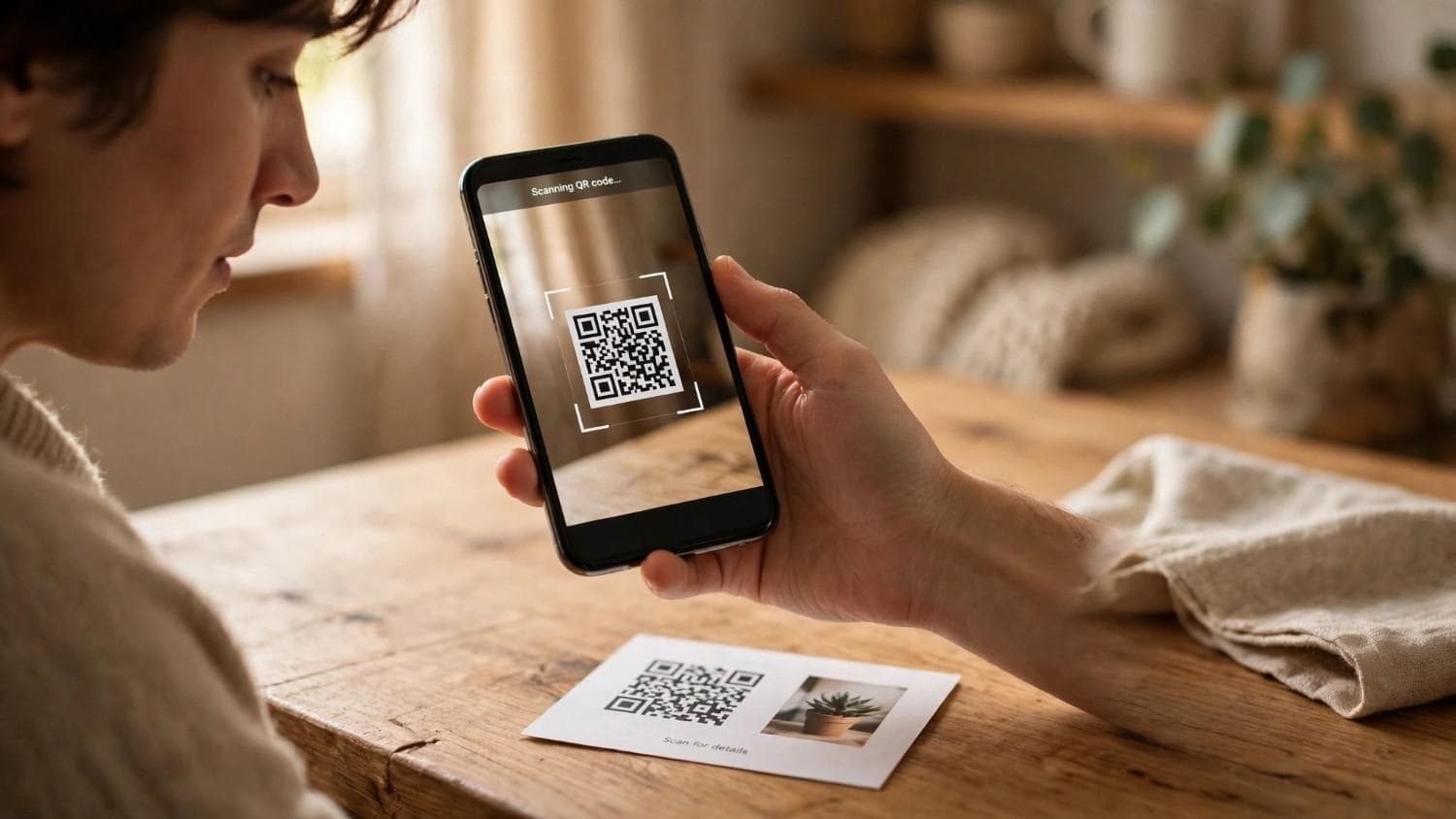
A Snapseed QR code is a photo edit saved as a square. Someone spends an hour balancing shadows, warmth, curves and grain on an image, turns that whole stack of adjustments into a code, and anyone who scans it gets the same recipe applied to their own picture in about two seconds.
The scan itself takes four taps once you know where the option lives. What trips people up is everything around it: Snapseed hides the scanner behind a photo you have to open first, the menu moved in the recent redesign, and most codes worth using are saved images rather than codes sitting on a screen in front of you. That last one has a proper answer that is not obvious. This guide covers all of it.
How to Scan a Snapseed QR Code: The Short Version
If you just need the taps:
- Open Snapseed and load a photo. Nothing works until a photo is open.
- Go to Looks.
- Tap QR Look.
- Choose Scan QR Look.
- Point the camera at the code.
The edit applies immediately. If the code is already saved on your phone rather than displayed somewhere, skip to the gallery section below, because the camera route will not help you there.
What a Snapseed QR Code Actually Is
Worth understanding first, because it explains most of the surprises that follow.
The code does not contain a photo. It contains a recipe: the list of adjustments and the exact values someone set for each one. Brightness, contrast, saturation, ambiance, warmth, curves, white balance, blur, bloom, glow and the rest, each with its number.
When you scan it, Snapseed reads that list and applies those same values to whatever photo you have open. Your photo, their settings.
This is why a look is a few hundred bytes of instructions rather than a picture, why it travels as a tiny image, and why the same code can produce a beautiful result on one photo and an unusable one on another.
Open a Photo First
The step most people miss.
Snapseed will not let you scan from the home screen. The scanner lives inside the editing interface, and that interface only exists once a photo is in it. Open the app, load an image, and only then go looking for Looks.
If you cannot find the QR Look option anywhere, this is almost always why. It is not missing from your version, you just have not given the app something to work on.
Any photo will do for testing. You can scan a look, see what it does, and discard it without saving.
How to Scan a QR Code in Snapseed With the Camera
Use this when the code is somewhere outside your phone, on a laptop screen, a printed page, or another person's device.
- Open your photo in Snapseed.
- Open Looks.
- Tap QR Look, then Scan QR Look. The camera opens inside the app.
- Hold the phone steady and frame the code so the whole square sits in the viewfinder, including a little blank margin around it.
- Wait for the confirmation. The look applies to your open photo straight away.
Hold roughly 15 to 20 cm from the code. Closer and the camera cannot focus, further and the pattern gets too small to resolve. Scanning off a screen, tilt it slightly to kill the glare rather than moving the phone.
How to Scan a QR Code in Snapseed From Your Gallery
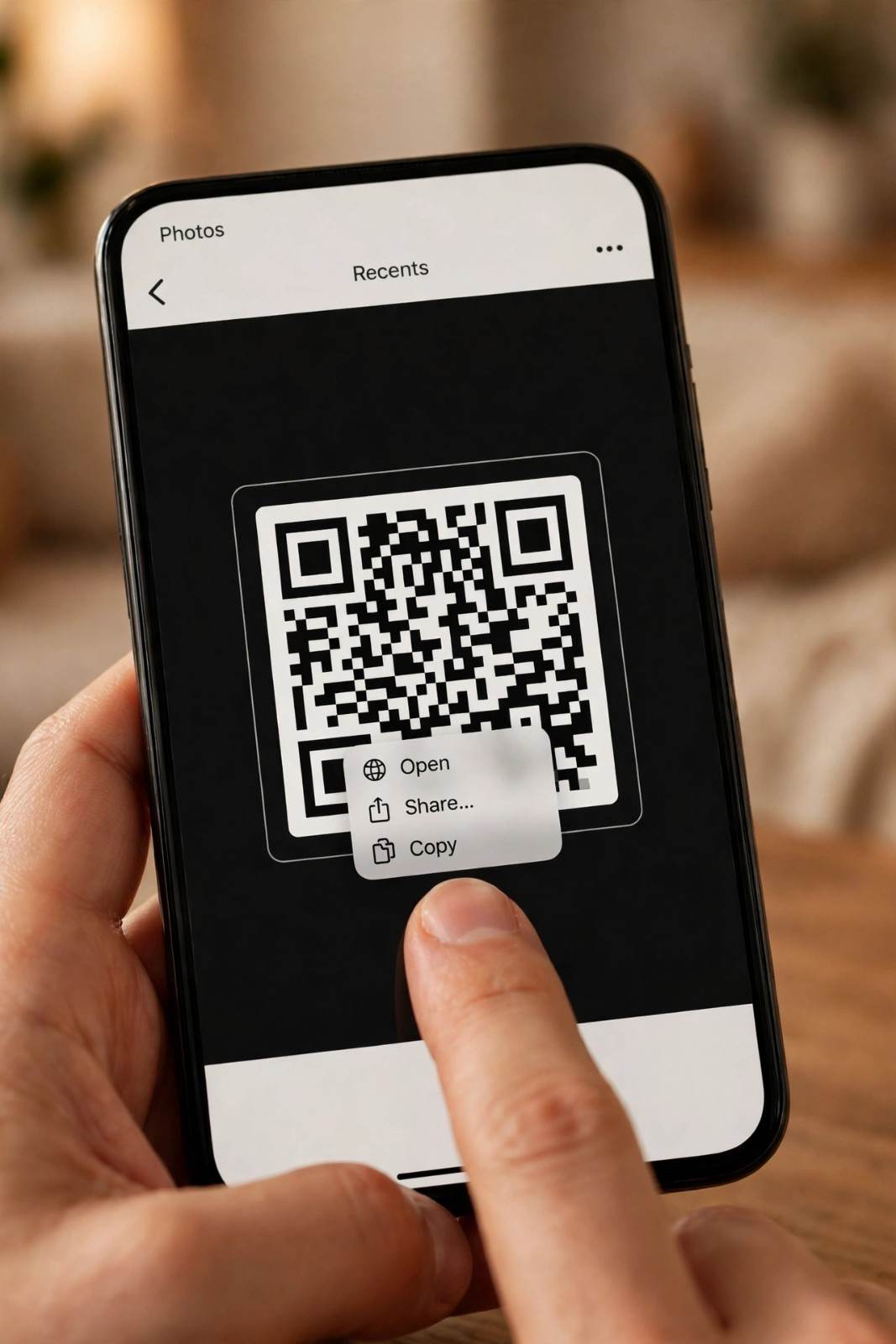
This is the situation people actually find themselves in, and it has a real answer that is not where you would look for it.
Looks get shared as pictures. Someone posts a code to Instagram, sends it on WhatsApp, or you save one from a website. Now the code is in your gallery and there is no second screen to point a camera at.
Snapseed has no gallery import. The QR Look scanner opens the camera and only the camera. This comes up regularly, and in a discussion on the Snapseed subreddit three months ago a user asked for exactly this feature. A member of the Snapseed team replied that they are thinking about how to improve the Looks experience across the board, covering creating, sharing, importing and managing.
In the meantime, the same reply gave the workaround, and it works well:
Long press the QR code image in your phone's photo gallery. Your phone detects the code inside the picture and offers to open the Look in Snapseed. Tap that and the look loads, no camera involved.
This works because modern phones read QR codes inside images, not just through the live camera. Users have confirmed it on recent iOS builds, and the same long press behaviour exists on Android through the gallery's built in code detection.
If long pressing does nothing on your device, the fallback is to display the code on a second screen, a laptop, tablet or another phone, and scan it with the camera as normal. Clumsy, but reliable.
One caveat either way: heavily compressed images may not read at all. A code screenshotted from a social post, reposted, then screenshotted again loses enough detail that the pattern becomes unreadable. Save the original file where you can.
Saved Looks and QR Looks Are Not the Same Thing
A distinction worth drawing, because the two sit side by side in the app and do different jobs.
A saved look lives on your device. You build an edit, save it to your own Looks list, and apply it to future photos with one tap. It never leaves your phone.
A QR Look is that same recipe turned into a shareable square. It exists so someone else can use your edit, or so you can move an edit between your own devices.
In practice you usually want both. Scan a code once, then save it as a look so you are not scanning the same square for every photo in a batch.
Where the Option Sits in Your Version
Snapseed changed shape recently, so the route depends on which build you have.
Version 3.0 landed on iOS in June 2025, the first significant redesign since 2015. Android did not get it. As PetaPixel reported, Android users waited for version 4.0 in May 2026, which brought the new interface to both platforms along with batch editing, an in app camera and one touch masking.
| Version | Where to find it |
|---|---|
| 4.x and 3.x, current | Looks is a tab in the bottom navigation, beside Faves and Tools. The QR option sits inside it |
| 2.x, classic | Looks is a strip across the bottom when a photo is open. Scroll the strip to find QR Look |
For creating codes, the classic interface uses the edit stack icon at the top right, the one that looks like a small stack of sliders. Newer builds have moved toward a menu on the editing screen, so if that icon is not where you remember, check the menu in the top corner.
Both generations have the feature. Only the path differs.
Saving a Look So You Can Use It Again
Scanning applies a look once, to the photo currently open. To keep it, save it.
With the look applied, open the Looks list and find the option to add the current look, usually a plus icon. Name it something you will recognise. It then sits alongside Snapseed's built in looks and applies to any future photo with a single tap.
This matters for batches. Scan once, save, then apply your saved look to everything else. Rescanning the same code twenty times is wasted effort.
Creating and Sharing Your Own QR Look
The reverse process, for an edit you are pleased with.
- Open a photo and edit it until you are happy.
- Open the edit stack menu, the slider icon at the top of the editing screen in the classic interface, or the menu in the top corner in newer builds.
- Choose QR Look, then Create QR Look.
- Snapseed generates the code and shows it with a preview of your edit.
- Save it to your device or share it directly.
The generated code is an image, so it behaves like any other picture once it leaves the app. Share the original file rather than a screenshot where you can.
Test before you share. Scan your own code onto a different photo first. A look built on a dark indoor shot can behave very differently on a bright outdoor one, and it is better to find that out yourself.
Where to Find Ready Made Looks
Plenty of codes circulate, and quality varies enormously.
Photographers and editing accounts share them on Instagram, Pinterest and YouTube, usually as an image in a post or pinned in a comment. Photography blogs publish them alongside sample before and after shots, which is the most useful format because you can see what the look was built for.
Two things to look for when picking one. A sample image tells you what kind of photo the look suits, which matters more than the name. And a clean, uncompressed code will actually scan, where a code lifted from three reposts often will not.
Build your own library as you go. Scan the ones you like, save them with names that describe the effect rather than whatever the creator called them, and you will find them again.
Why Your Result Looks Different From the Example
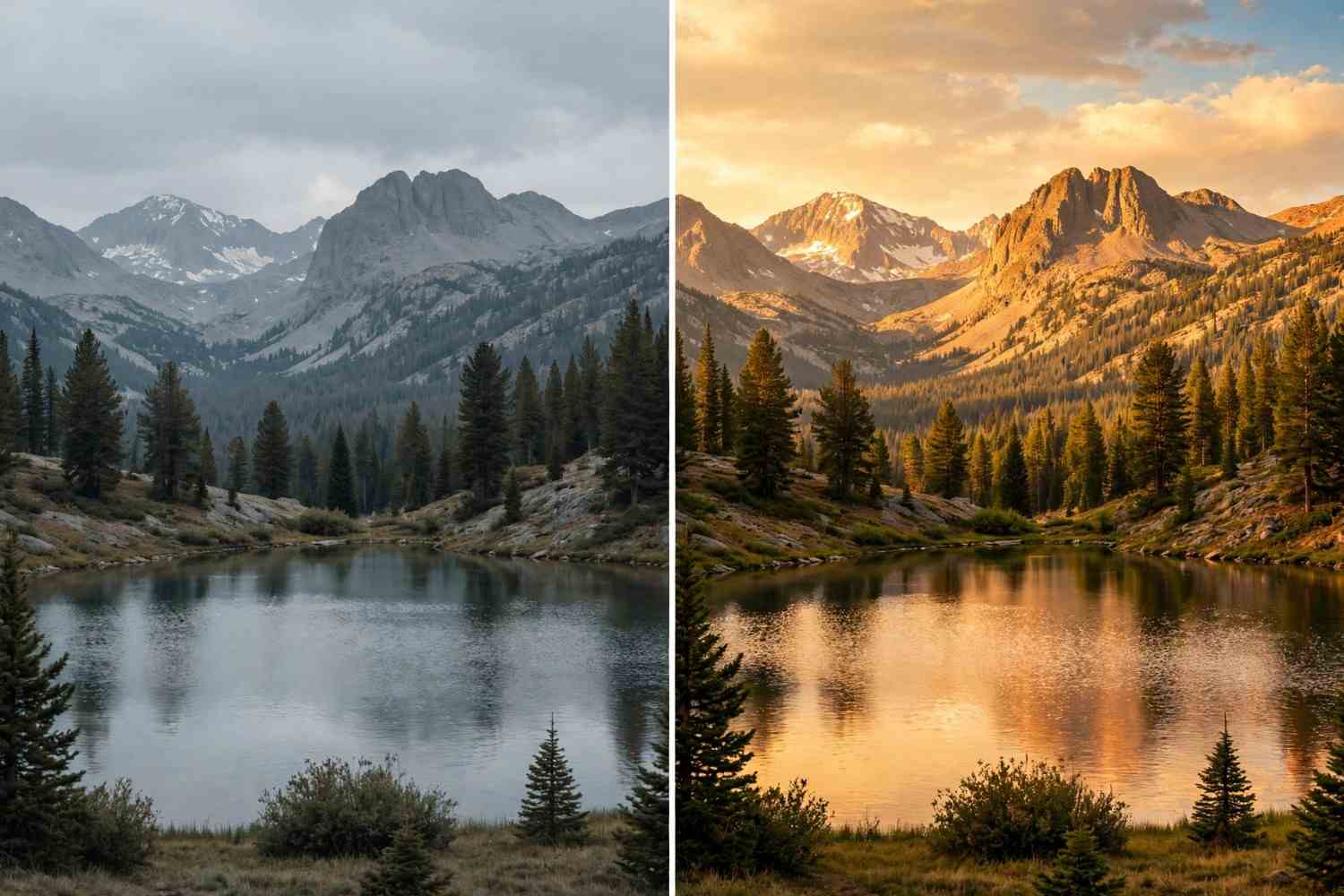
Not a fault, and not something you did wrong. It follows from how these codes work.
The code carries fixed values. Raise brightness by a set amount, add a set amount of contrast, shift warmth by a set number of points. Those numbers were chosen for the photo the look was built on.
Your photo is a different photo. If the original was underexposed and the look adds a lot of brightness, applying it to an already bright image blows out the highlights. A look built for a warm golden hour portrait will make an overcast landscape look odd. A heavy contrast curve that flattered a high key studio shot can crush a night scene's shadows into solid black.
What to do:
- Apply the look, then adjust. The individual tools stay editable. Open the edit stack and dial back whichever adjustment is overdoing it.
- Match the look to the photo. Looks built for portraits generally suit portraits. Moody film looks need some shadow detail to work with.
- Try it on two or three photos before deciding a look is useless. Some are genuinely narrow in what they suit.
Treat a scanned look as a starting point rather than a finished edit. That is how people who get consistently good results use them.
What Carries Over and What Does Not
A look stores the adjustments, but not every adjustment travels equally well.
Travels reliably: global tonal and colour work. Brightness, contrast, saturation, ambiance, warmth, highlights, shadows, structure, curves, white balance, grain, vignette, and the filter style tools like Drama, Vintage, Grunge and Noir.
Travels poorly or not at all: anything tied to a specific place in the original image. Selective adjustments pinned to a point on a face, brush work painted over one area, healing applied to a particular blemish, masked edits separating subject from background. Those coordinates mean nothing on a different photo, because there is nothing at those coordinates on yours.
Not included: the photo itself, and crops or rotations in most cases, since those belong to the specific image rather than to a style.
The practical consequence for anyone making a look to share: finish the colour grade, generate the code, and do your spot healing and selective work afterwards.
Snapseed Looks Only Work in Snapseed
Worth stating plainly, because people try.
These codes are read by Snapseed and nothing else. Point your phone's ordinary camera at one and you get either nothing or an unhelpful string of characters, because the code is not a web link and your camera has no idea what to do with it. The long press trick above works precisely because it hands the code to Snapseed rather than trying to open it as a web page.
They also will not import into Lightroom, VSCO, Picsart or Canva. There is no conversion. To get the same look in another app you rebuild it there by hand.
When the Scan Will Not Work
Run through these in order.
- No photo open. The most common cause by a distance. Load an image first.
- You are trying to import from the gallery inside the app. That option does not exist. Long press the image in your gallery instead.
- The code is cropped. QR codes need a clear margin on all four sides. Cropped tight to its edges, a code often will not read.
- The image is too compressed. Repeated screenshotting and resharing destroys the fine detail. Find the original.
- Glare on the screen you are scanning. Change the angle rather than the distance.
- Camera shake. Brace your elbows or rest the phone against something solid.
- The app is out of date. Older builds predate the feature. Update and try again.
- It applies but nothing looks different. Check the edit stack. The look may be applying subtle values that are hard to see on your particular photo.
Why QR Codes Fail to Scan at All
Some failures have nothing to do with Snapseed. The code itself is badly made or badly displayed, and the same causes come up everywhere:
- No quiet zone. A code needs clear margin on all four sides. Crop it tight and scanners lose the frame.
- Low contrast. Dark on light reads reliably. A code laid over a photo or printed in a mid tone often does not.
- Rendered too small for the viewing distance. A code meant to be scanned across a room needs to be far larger than one held in the hand.
- Error correction set too low. Higher levels let a code survive creases, scuffs and partial damage.
- Never tested on a real phone. A code that scans on the designer's handset can fail on an older one.
We put together a fuller checklist on this: our guide to QR codes that actually scan covers sizing, contrast, margins and error correction in order. If you need to make a code of your own, our free QR code generator exports PNG and SVG up to 2048px with adjustable error correction and no watermark. If you need dynamic links that can be redirected anytime, shorten them with our URL shortener first.
Frequently Asked Questions
How do I scan a Snapseed QR code?
Open Snapseed, open a photo, go to Looks, tap QR Look, then Scan QR Look. Point the camera at the code. The edit applies to your open photo straight away. If the code is saved on your phone instead, long press it in your gallery and choose to open it in Snapseed.
How do I scan a QR code in Snapseed from my gallery?
Not through the app. Snapseed's scanner only opens the camera, with no gallery import. Instead, long press the QR code image in your phone's photo gallery and your phone will offer to open the Look in Snapseed. This workaround was confirmed by the Snapseed team, who have said they are looking at improving how Looks are imported and managed.
Why can I not find the QR Look option?
Almost always because no photo is open. The scanner lives inside the editing interface, which only appears once you have loaded an image. Open a photo first, then go to Looks.
Can I use my phone's normal camera to scan a Snapseed QR code?
No. These codes are not web links, so your ordinary camera app has nothing to open. They have to be handed to Snapseed, either through the in app scanner or by long pressing the saved image.
Why does the look appear different on my photo?
Because the code stores fixed adjustment values chosen for a different image. Applying the same brightness, contrast and colour shifts to a photo with different exposure and tones produces a different result. Apply it, then adjust the individual tools to taste.
Do selective edits carry over in a Snapseed look?
Not usefully. Adjustments pinned to a specific point, brushed over an area, or masked to a subject are tied to the original image's contents. Global tonal and colour adjustments are what travel reliably.
How do I save a Snapseed look after scanning it?
Once it is applied, open the Looks list and use the add option, usually a plus icon, then name it. It joins your own looks and can be applied to any future photo with one tap.
Can I use Snapseed looks in Lightroom or VSCO?
No. These looks are readable only by Snapseed, and there is no conversion to other editors. You would have to rebuild the same adjustments manually in the other app.
Does a Snapseed QR code contain my photo?
No. It holds only the list of adjustments and their values. Nothing of the original image is included, which is why the file is so small and why the result depends entirely on the photo you apply it to.
Sources and Official References
Related reading
How to Generate a UPI QR Code
How to generate a UPI QR code from your UPI ID, with a fixed amount, in BHIM, or for a current account, plus the settings that decide whether it works in every app.
The Uitly Team
How to Scan a Cadbury Celebrations QR Code (and What It Will Actually Do)
How to scan a Cadbury Celebrations QR code, what each campaign code does, why there is no prize code inside the box, and how to tell if a campaign is still live.
The Uitly Team
How to Scan a Passkey QR Code (and What to Do When It Appears on the Wrong Device)
How to scan a passkey QR code to sign in on another device, which app to use, why Bluetooth is required, and what to do when the code appears on the wrong device.
The Uitly Team