
How to Scan a QR Code in Myntra: Every Method That Actually Works
How to scan a QR code in Myntra, where the in-app scanner lives, what each code unlocks, and what to do when the code will not read.
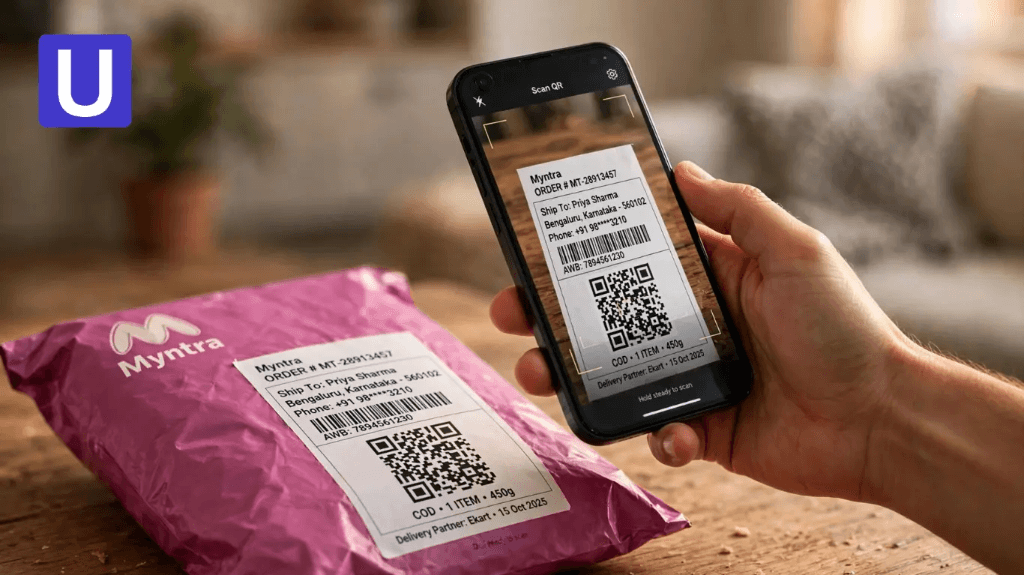
Your parcel has arrived, there is a square black-and-white code printed on the packet, and somewhere in the app you are supposed to scan it. So you open Myntra, look at the home screen, look again, and find nothing that obviously says scan. It is a small thing, but it stops a lot of people cold, and the advice online contradicts itself.
Here is the short version. Learning how to scan a QR code in Myntra is less about finding one hidden button and more about knowing which code you are holding, because the app does not advertise a general-purpose scanner the way some shopping apps do. There are two routes inside the app and several reliable ways to read the same code from outside it. This guide covers where the scanner sits, what each type of code actually unlocks, the exact steps for your delivery packet, what to do when nothing happens, and how to tell a genuine code from a fake one.
How to Scan a QR Code in Myntra: Quick Steps
If you only need the answer, start here:
- Open the Myntra app and sign in.
- Look for the barcode or camera icon to the right of the search bar on the home screen. Tap it.
- If there is no icon there, open My Orders and select the order the code belongs to. Myntra's own support team points customers to this section for scanning packet codes.
- Allow camera access when prompted.
- Hold the code flat and centred in the frame, in good light, until the app reads it.
No scan option anywhere? Use your phone camera, Google Lens, or any QR app instead. That works for almost every code Myntra prints, and the section further down explains which method suits which code.
Where the Scanner Sits Inside the Myntra App
This is where most guides go wrong. They describe a scanner in a fixed location and move on, when in practice what you see depends on your app version, your account, and sometimes your region.
The barcode icon beside the search bar
On current builds, the quickest route is the small barcode or camera icon at the right-hand edge of the search bar on the home screen. Tapping it opens the camera directly.
Some users also report reaching it through the Discover tab in the bottom navigation. Treat both as the first thing to try rather than a guarantee, because Myntra does not document the placement publicly and it has moved between versions.
The My Orders route
This is the route with official backing. Myntra's support team tells customers to scan the code from the My Orders section of the app or website, and to make sure the packet is flat and the code is not creased while scanning.
That matters because it tells you something useful: the packet code is tied to a specific order. It is not a general coupon scanner. It is a way of confirming the parcel in your hands matches the order in your account.
Why you might not see a scan option at all
If there is no icon anywhere, one of these usually explains it:
- Your app build is older than the version that introduced the icon
- You are signed out, or browsing as a guest
- You are on the mobile website rather than the app
- The feature has not rolled out to your account yet
- Camera permission was denied earlier, so the entry point is hidden
Updating the app from the Play Store or App Store fixes most of these. If it does not, nothing is broken on your side and the external methods below will still read the code.
What Myntra's Codes Actually Do
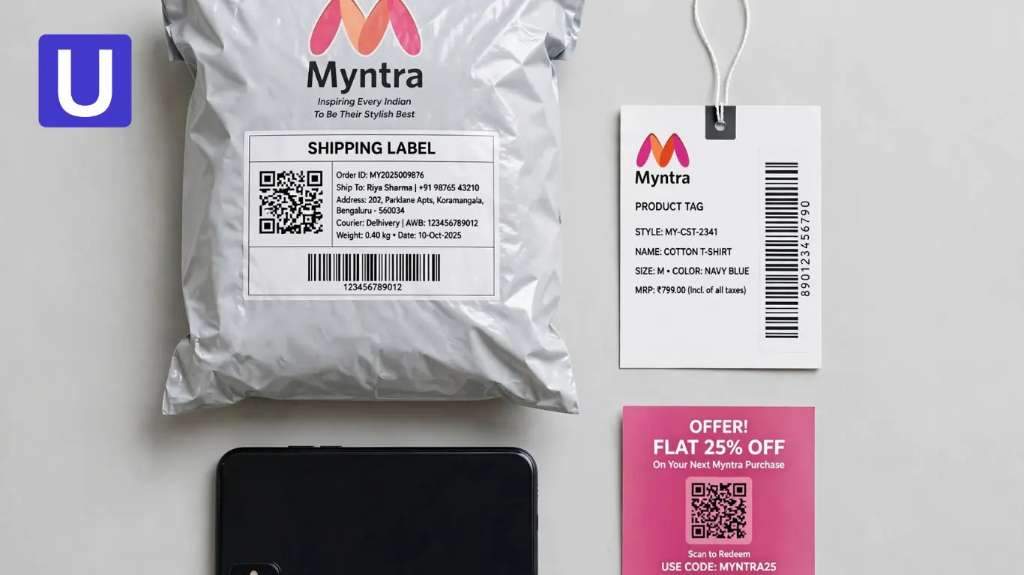
Not every square on a Myntra parcel is the same thing, and that confusion is the real reason people struggle. There are three distinct code types, and only one of them belongs in the app's own scanner.
| Code type | Where you find it | What it does | Best way to scan |
|---|---|---|---|
| Packet QR code | Printed on the delivery bag or the shipping label | Links the parcel to your specific order | Myntra app, via My Orders |
| Product barcode or UPC | Tag attached to the garment, or a sticker on the box | Identifies the exact product, size and seller | Any barcode app, or read the digits manually |
| Promotional QR code | Posters, emails, social posts, store displays | Opens an offer, a collection, or a campaign page | Phone camera or Google Lens |
The QR code on your delivery packet
This is the one most people mean when they search for this. It encodes order and shipment references rather than a public web page, which is why a general QR app may return a string of numbers that looks like nothing useful.
That is normal. The code is meant to be read in the context of your order, which is exactly why the My Orders route exists.
The barcode on the product tag
Every item carries a product barcode, usually a UPC or EAN. A UPC is the familiar twelve-digit number that identifies a single product and the company behind it, and on Myntra it pins down the exact style, colour and size you were sent.
It is primarily there for warehouse and inventory systems rather than for shoppers. Myntra's own operations use it to track stock, pick items and keep product records straight, and sellers are responsible for labelling each item correctly before it ever reaches a customer.
You can still scan it. A barcode app will give you the number, which is handy when you are:
- Raising a complaint and need to quote the exact item
- Checking you received the right size or colour variant
- Matching a replacement against the original order
- Confirming a tag belongs to the garment it is attached to
Promotional and campaign codes
These behave like any ordinary marketing QR code. They hold a normal web link, and your phone camera will open it without Myntra's app involved at all.
If one of these refuses to open, the problem is almost always the printing rather than your phone. Codes that are too small for the viewing distance, printed with weak contrast, or cropped too tightly at the edges fail constantly, and our checklist for QR codes that actually scan walks through each of those failure points.
Step by Step: Scanning the Code on Your Delivery Packet
This is the full walkthrough for the most common case:
- Keep the packet intact. Do not tear through the label. The code needs to stay readable.
- Open the app and go to My Orders. Find the order that matches the parcel.
- Open the order detail. Look for the scan prompt attached to that order.
- Grant camera access. The scanner cannot open without it.
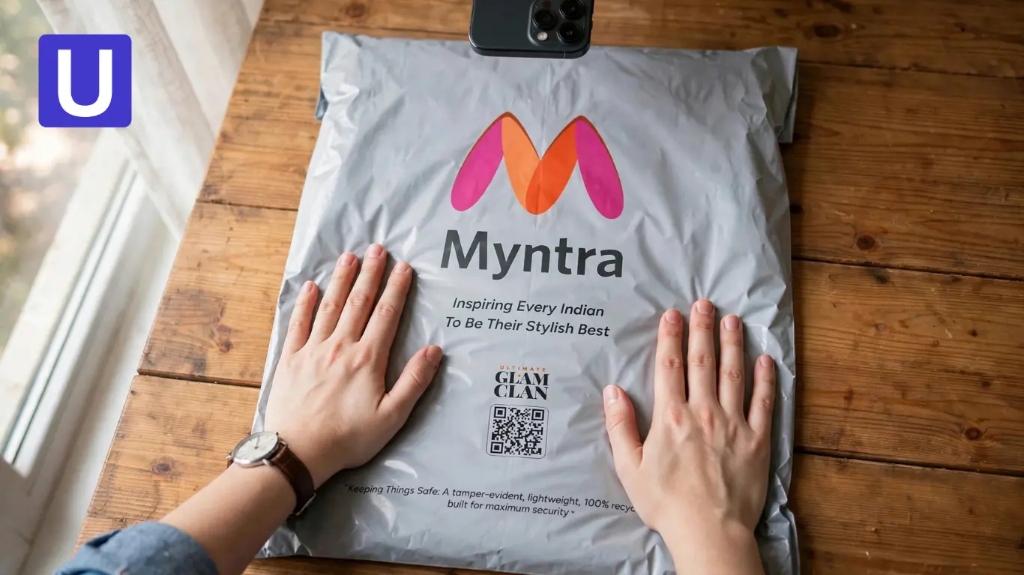
- Flatten the packet. Courier bags crease badly, and a wrinkle running across the code is the single most common reason it will not read. Myntra's support team calls this out specifically.
- Get the light right. Indirect daylight is ideal. Avoid a hard overhead light that throws glare across the plastic.
- Hold steady at roughly 15 to 20 cm. Move slowly closer or further until the camera locks focus.
- Wait for the confirmation. The app will show the linked order information once it reads the code.
If it has not read within about ten seconds, stop moving the phone and try the troubleshooting steps below rather than waving it around.
How to Scan a Myntra Code Without the In-App Scanner
You are not stuck if the app will not cooperate. Three alternatives cover almost everything:
| Method | Works for | Limitation |
|---|---|---|
| Phone camera | Promotional codes and any code holding a web link | Returns raw text for order-linked codes |
| Google Lens | All code types, plus printed barcode numbers | Needs an internet connection |
| Paytm or a dedicated QR app | QR codes and most retail barcodes | Extra app, and some push their own offers first |
Your phone's camera
On most phones made in the last few years, the camera reads QR codes with no extra app. Open the camera, point it at the code, and tap the link that appears.
On Android, if nothing appears, check that Scan QR codes is switched on in the camera settings. On iPhone, the equivalent toggle sits in Settings under Camera.
Google Lens
Lens is the most forgiving of the three. It handles poor lighting and slight angles better than a plain camera, it reads product barcodes as well as QR codes, and it will search the number for you if the code is not a link.
It is built into the Google app and the camera on many Android phones, and it is available through the Google app on iPhone.
Paytm and other QR apps
Paytm's Scan Any QR option reads general codes, not only payment ones, and it is already installed on a lot of phones in India. Any reputable dedicated scanner does the same job.
One caution: a scanner app only reads what is there. It cannot authenticate that a code belongs to Myntra, which brings us to safety in a moment.
Scanning From the Myntra Website on Desktop
Myntra's support guidance mentions the app and the website, which raises an obvious question: how do you scan anything on a laptop with no rear camera?
In practice you do not scan on desktop. You match instead:
- Open My Orders on the website and find the order
- Read the order and item references on screen
- Compare them against the digits printed under the code on the packet
- Continue the return, exchange or support request from the same screen
This is worth knowing because a damaged or creased code stops being a problem the moment you realise the numbers beneath it carry the same information. If you are already at a desk, matching by eye is usually quicker than hunting for a scanner that reads a wrinkled label.
Myntra QR Code Not Scanning? Work Through This
Most failures come down to five or six causes, and they are quick to rule out in order:
| What you see | Likely cause | Fix |
|---|---|---|
| Camera opens, nothing happens | Code is creased or curved | Flatten the packet against a hard surface |
| Blurry preview | Camera too close to focus | Pull back to about 20 cm and let it refocus |
| Works outside, fails indoors | Not enough light, or glare on plastic | Move to indirect daylight, change the angle |
| Scanner will not open | Camera permission denied | Enable camera access for Myntra in phone settings |
| No scan icon in the app | App version out of date | Update from the Play Store or App Store |
| Reads, then shows an error | Weak or no connection | Switch between mobile data and Wi-Fi |
| Returns meaningless numbers | Order-linked code read by a general app | Scan it inside Myntra instead |
A few extra things worth checking:
- Wipe the camera lens. It sounds trivial and it solves a surprising number of cases.
- Remove a thick phone case if it sits proud of the lens and casts a shadow.
- Check the code is not torn, smudged or partly covered by tape.
- Turn off any beauty or filter mode, which can soften the image enough to break the read.
If the code is physically damaged, scanning will not recover it. Go to the order in the app and continue from there, or contact support with your order number.
Finding Your Myntra Barcode Number Without Scanning
Sometimes you do not need to scan at all. You just need the number.
- In the app: Open My Orders, select the order, and open the item detail. The product and order references are listed there.
- On the packaging: The printed digits sit directly beneath the barcode lines on the tag or label.
- In your confirmation email: Order and item references appear in the order summary Myntra emails you.
Typing the number manually is often faster than fighting with a damaged code, and it works just as well when you are raising a support ticket.
Is It Safe to Scan Myntra QR Codes?
A code printed on a parcel that was delivered to your door is about as low-risk as it gets. The risk lies with codes you encounter in public, in unexpected messages, or stuck over the top of another code.
The FTC has warned that scammers hide harmful links inside QR codes to steal personal information, and its advice applies directly here. Check the web address before you open it, watch for misspellings or swapped letters that signal a spoofed site, and do not scan codes that arrive unexpectedly and push you to act fast. FTC warnings and consumer guidance set out the full breakdown of these tactics.
Practical checks before you tap through:
- The link should resolve to a myntra.com address. Anything else deserves suspicion.
- Be wary of shortened links in printed Myntra promotions you cannot trace back to the brand.
- A genuine offer will never need your card details, OTP or password simply to view it.
- If a sticker looks like it was added over the original print, do not scan it.
- When in doubt, open Myntra directly and look for the same offer there.
The same logic applies to codes you create yourself. If you are generating a QR code for your own business, encoding a clean, traceable link matters as much as the design, and a free QR code generator that outputs both PNG and SVG with adjustable error correction gives you a code that survives real-world printing. Using a trusted URL shortener beforehand also ensures you can update the destination without reprinting.
Frequently Asked Questions
Where is the QR code scanner in the Myntra app?
Look for the barcode or camera icon beside the search bar on the home screen. If it is not there, open My Orders and scan from the relevant order, which is the route Myntra's support team points customers to.
Can I scan a Myntra QR code without the app?
Yes, for most codes. Your phone camera or Google Lens will read promotional and link-based codes. Codes tied to a specific order are best scanned inside the app, because a general scanner will only show the raw reference.
Does scanning work without an internet connection?
The camera can read the pattern offline, but nothing useful happens afterwards. Opening the linked page or matching the code to your order both require a connection, so claims that Myntra scanning works fully offline are wrong.
Do I earn reward points for scanning QR codes?
No. Some articles claim scans earn points redeemable for discounts. There is no such published programme, and you should not expect rewards simply for scanning.
Why does my scan return a string of random numbers?
You have almost certainly scanned an order-linked packet code with a general QR app. Those codes hold internal references rather than a web page. Scan the same code inside Myntra and it will resolve against your order.
Can I use my phone's camera app instead?
Usually, yes. Most recent iPhone and Android cameras detect QR codes automatically. On Android, confirm that QR scanning is enabled in the camera settings if nothing appears.
What is the difference between the barcode and the QR code on my order?
The barcode identifies the product itself, including style, colour and size. The QR code on the packet relates to your shipment and order. They serve different systems and are not interchangeable.
Can shoppers scan the seller barcode on a Myntra product?
You can read it with any barcode app and get the number, which is useful for checking you received the correct variant. It is designed for inventory and warehouse use, though, so it will not open a shopping page.
What should I do if the Myntra QR code is torn or smudged?
Stop scanning and work from the order instead. Open My Orders, find the item, and use the order number when contacting support. A physically damaged code cannot be recovered by a better scanner.
Key Takeaways
Most of the confusion around how to scan a QR code in Myntra comes from treating three different codes as one. Once you know which is which, the method picks itself:
- Try the barcode icon by the search bar first, then My Orders, which is the officially supported route.
- Three different code types exist on a Myntra order, and only the packet code needs the app's own scanner.
- A creased packet and poor lighting cause more failed scans than anything else.
- Google Lens is the most forgiving fallback when the in-app scanner is unavailable.
- Check that any link resolves to myntra.com before you tap it, and ignore codes that arrive unexpectedly.
Related reading
How to Generate a UPI QR Code
How to generate a UPI QR code from your UPI ID, with a fixed amount, in BHIM, or for a current account, plus the settings that decide whether it works in every app.
The Uitly Team
How to Scan a Snapseed QR Code (and How to Open Gallery Codes)
How to scan a Snapseed QR code, including the long press gallery workaround, saving looks, creating your own, and why a scanned look looks different on your photo.
The Uitly Team
How to Scan a Cadbury Celebrations QR Code (and What It Will Actually Do)
How to scan a Cadbury Celebrations QR code, what each campaign code does, why there is no prize code inside the box, and how to tell if a campaign is still live.
The Uitly Team