
How to Connect QR Code to WiFi
How to connect QR code to WiFi on iPhone, Android, Samsung, Pixel, Huawei, and Windows 11, how to scan a code from a photo, how to make your own code, and why a code will not connect.
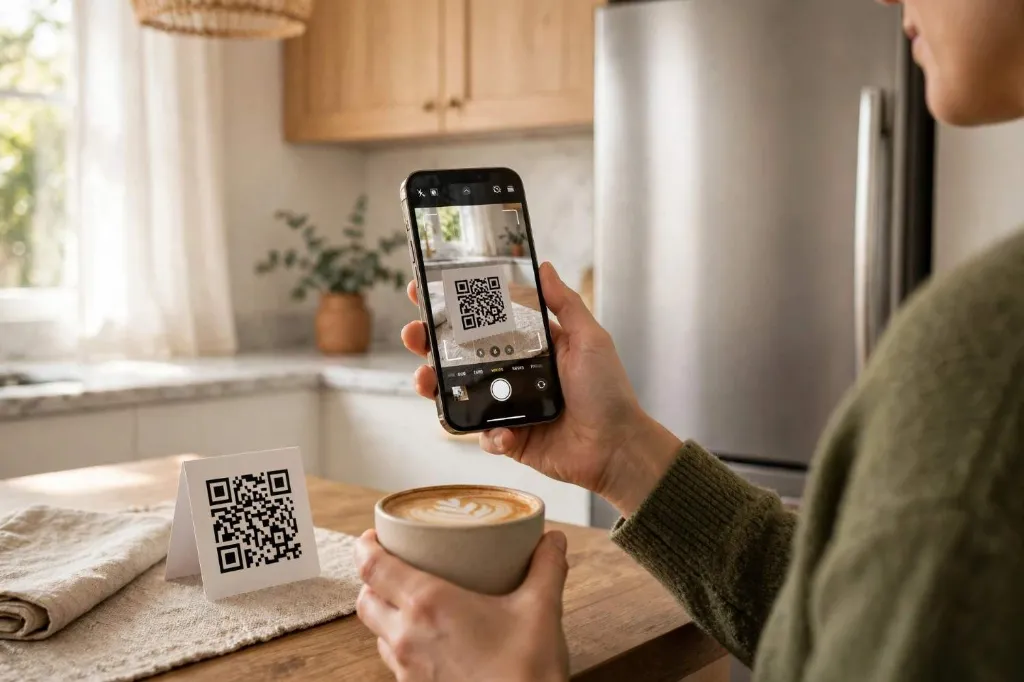
A guest is standing in the hallway with a phone in one hand and a coffee in the other, and the WiFi password is a 19 character mix of capitals, numbers, and symbols printed in small type on the bottom of the router. Reading it out loud takes three tries, and one wrong letter means starting again. A printed square on the fridge would have done the job in two seconds.
That square is a WiFi QR code, and learning how to connect QR code to WiFi is mostly a matter of pointing a phone camera at it and tapping the prompt that appears. The rest is knowing where the prompt lives on each device, what to do when it does not appear, and how to make a code of your own that works the first time.
How to connect QR code to WiFi: what a WiFi QR code is
A WiFi QR code is a QR code that holds the details a phone needs to join a wireless network, instead of a web link. Point a phone camera at it, and the phone reads the network name, the password, and the security type, then asks if you want to join. Tap once, and the phone joins without anyone typing the password.
No separate app is needed on a modern phone. iPhones running iOS 11 or later and Android phones running Android 10 or later read these codes in the built-in camera. Windows 11 version 24H2 and later can also scan one with the Camera app. A Mac has no built-in way to join WiFi by scanning a code with its camera.
Why use a WiFi QR code instead of typing the password
Typing a long WiFi password is slow, and it is easy to get wrong. A single mix-up between a zero and a capital O, or a lower-case L and the number one, stops the connection, and the person typing has no way to see which character was wrong. A scan removes that step entirely, and it lets a household keep a strong password without making guests suffer for it.
That is the main reason people use these codes at home. A code on the fridge lets visitors connect in seconds, and the host never has to read the password out loud. Cafes, hotels, and offices use them for the same reason.
What is actually inside a WiFi QR code
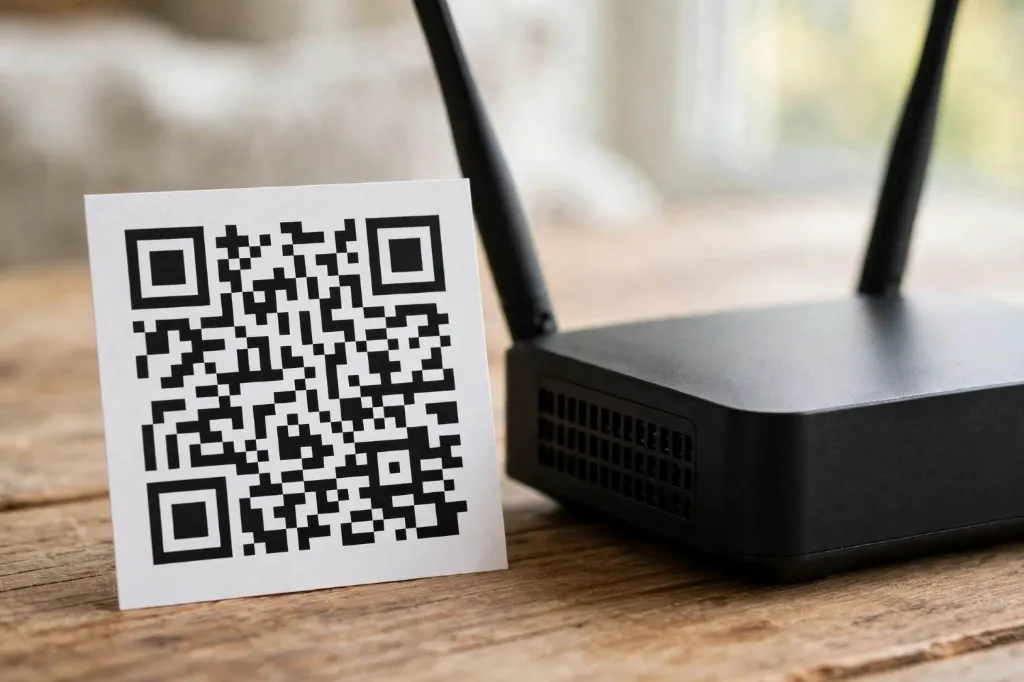
Inside a WiFi QR code is a short line of plain text in a set format. A typical code holds a string like this: WIFI:T:WPA;S:GuestNetwork;P:ExamplePassword;H:false;;
| Field | What it means | Values | Required? | Notes |
|---|---|---|---|---|
| T | Security type | WPA, WEP, nopass | Yes | WPA covers WPA, WPA2, and WPA3 in practice |
| S | Network name, the SSID | The exact network name | Yes | Case sensitive, including spaces |
| P | Password | The network password | Yes, unless nopass | Case sensitive, stored in plain text |
| H | Hidden network | true or false | No | Use true only when the SSID is not broadcast |
Field order does not matter, and the string always ends with a double semicolon. A semicolon, colon, comma, double quote, or backslash inside the network name or password must be escaped with a backslash, or the phone will read the wrong value. A password of a;b, for example, must be written as a\;b inside the code. That escaping step is the most common reason a code scans and then will not connect.
A hidden network needs H:true in the code. A WPA2-Enterprise network, the kind that asks for a username and a password on a work or university network, cannot be encoded in this format at all, because the format has no field for a username.
How to scan a WiFi QR code on iPhone
Open the Camera app, point it at the code, and tap the banner that appears at the top of the screen. The banner reads Join Wi-Fi Network, followed by the network name. Tap it once, and the iPhone joins the network and saves it. No extra app is needed, and no photo needs to be taken.
Stay in Photo mode, and hold the phone so the whole code fits in the frame, about 15 to 20 cm away for a small printed code. If the code is on a glossy card under a ceiling light, change the angle instead of moving closer, because glare is the usual cause of a failed scan.
If nothing appears, check Settings, then Camera, and make sure Scan QR Codes is switched on. It is on by default, and it gets turned off during setup more often than people expect. Apple Support explains the Camera and Code Scanner steps in its own help page.
The Code Scanner in Control Centre is a second route in dim light. Swipe down, tap Scan Code, and point the phone at the code.
How to scan a WiFi QR code on Android, Samsung, Pixel, and Huawei
On most modern Android phones, open the Camera app, point it at the code, and tap the prompt that appears. That works on Android 10 and later.
If the camera does nothing, use the scanner built into WiFi settings. That scanner is made for WiFi codes, and it works even when the camera app ignores the code.
- Open Settings, then Network and internet, then Internet.
- Tap Add network at the bottom of the list.
- Tap the QR icon in the field next to the network name.
- Point the camera at the code, and tap Connect when the network name appears.
Google support for Pixel phones describes the same share and connect steps, and the menus on other Android phones follow the same pattern, with small differences in wording.
| Device | First method to try | If the camera does nothing |
|---|---|---|
| Samsung Galaxy | Camera app, point and tap the notification | Open Camera, tap the cog, turn on Scan QR codes, or swipe down twice and use the QR scanner tile in Quick Settings |
| Google Pixel and stock Android | Camera app, point and tap the prompt | Settings, Network and internet, Internet, Add network, tap the QR icon |
| Huawei and Honor | Camera app, point and tap the prompt | Settings, Wi-Fi, tap the QR icon at the top right |
Samsung phones deserve a note of their own. Several carrier-branded Galaxy phones ship with Scan QR codes switched off in the Camera app. The Quick Settings QR scanner tile works even when the camera setting is off. To add it, swipe down twice, tap the pencil icon, and drag the QR scanner tile into the panel.
How to scan a WiFi QR code on Windows 11, and why Mac cannot
Windows 11 version 24H2 and later can scan a WiFi QR code directly on a device with a camera. Earlier versions of Windows 11, and Windows 10, have no built-in equivalent, and that is where a lot of confusion comes from. Some pages say Windows cannot scan at all, and some say it can, and both are right for different versions.
On a supported Windows 11 PC, the steps are short.
- Open the Camera app.
- Switch to Barcode mode by selecting the button with a QR code icon.
- Point the camera at the code.
- Select the prompt that appears.
- Windows opens Settings, where the connection can be confirmed.
A Mac has no built-in way to join WiFi by scanning a QR code with its camera. There is no Barcode mode in the Mac Camera app, and no WiFi QR scanner in macOS WiFi settings. The workable route is to share the password from an iPhone or iPad that is already on the network. Keep the iPhone unlocked and near the Mac, with WiFi and Bluetooth turned on, then select the network from the Mac WiFi menu. When the share prompt appears on the iPhone, tap Share Password. If neither option is available, connect by hand from the Mac WiFi settings.
How to scan a WiFi QR code from a photo or screenshot
A phone camera cannot scan a code that is already on its own screen, because the camera cannot see its own display. That is a common dead end, and it has a simple fix on both iPhone and Android: open the photo instead of pointing the camera at it.
On an iPhone, open the photo or screenshot in the Photos app, then touch and hold the code. A prompt appears with the network name, and tapping it joins the network. That uses Live Text, and it needs iOS 15 or later on an iPhone XS or XR or later. On an older iPhone, open the image on another screen, or ask a second phone to point its camera at it.
On Android, open the image in Google Photos or Google Lens. In Google Photos, tap the Lens icon, and Lens will decode the code and offer to connect. Samsung Gallery has a similar option on recent Galaxy phones.
How to make your own WiFi QR code, Android, iPhone, and Uitly
Making a code is the second half of how to connect QR code to WiFi, and the fastest way is usually the phone that is already connected to the network. On Android, open Settings, then Network and internet, then Internet, tap the gear icon next to the connected network, then tap Share or the QR code icon. On an iPhone, open Settings, then Wi-Fi, tap the information icon next to the connected network, then tap Share Password or Share Network, and confirm with Face ID or Touch ID.
A web generator is the third route, and it is the one to use for a printed card. Uitly's QR code generator currently offers four types: a website URL, plain text, an email address, or a phone number. It does not offer a dedicated WiFi type, so a WiFi code needs the plain text route, and that route works because a WiFi QR code is plain text underneath.
- Find the network name, the security type, and the password, exactly as they appear on the router or in the phone's WiFi settings.
- Write the WiFi string in the set format: WIFI:T:WPA;S:GuestNetwork;P:ExamplePassword;H:false;;
- Open the Uitly QR code generator, choose Plain text, and paste that string in as the content.
- Style the code, set the size, quiet zone, and error correction, then download it as a PNG for a screen or an SVG for print.
- Test it with a phone that is not yet connected to the network, and confirm that the correct network is offered before printing copies.
Replace GuestNetwork, ExamplePassword, and the security type with the real details, and escape any special character with a backslash first. A code made this way is static, so a changed password needs a new code.
Why your WiFi QR code will not connect, with fixes
Most failures fall into a small set of causes, and each one has a direct fix. Work through them in order, and check the simplest ones first, because a code that will not scan is usually a display problem, and a code that scans but will not connect is usually a detail problem.
| Problem | Likely cause | Fix |
|---|---|---|
| Nothing is detected | Camera QR scanning is off, or the code is too small, too far away, or in glare | Turn on Scan QR Codes in Camera settings, move to 15 to 20 cm, change the angle, turn the screen brightness up |
| It scans, then asks for a password | The network name or security type in the code is wrong | Check the SSID letter by letter, including spaces and capitals, and check that T is WPA for a modern network |
| It scans, then says the password is wrong | A special character was not escaped, or the password has changed | Escape ; : , " and backslash with a backslash, regenerate the code, and test it on a fresh phone |
| The network is hidden | The code has no H:true field, or the phone will not join a hidden network by code | Regenerate the code with H:true, and if that fails, add the network by hand with the exact SSID |
A code made for a WPA2-Enterprise network will fail on every phone, because that network type cannot be encoded at all. In that case, join by hand.
Is sharing WiFi with a QR code safe?
A WiFi QR code is the password written in plain text, in a form a camera can read. Anyone who sees the code, or photographs it, has the password, and anyone who scans it can join the network. That is the whole point of the code, and it is also the main risk, so the code belongs on a guest network, not on a main home network.
Use a guest network instead, with its own name and password, and keep the main network code off any public surface.
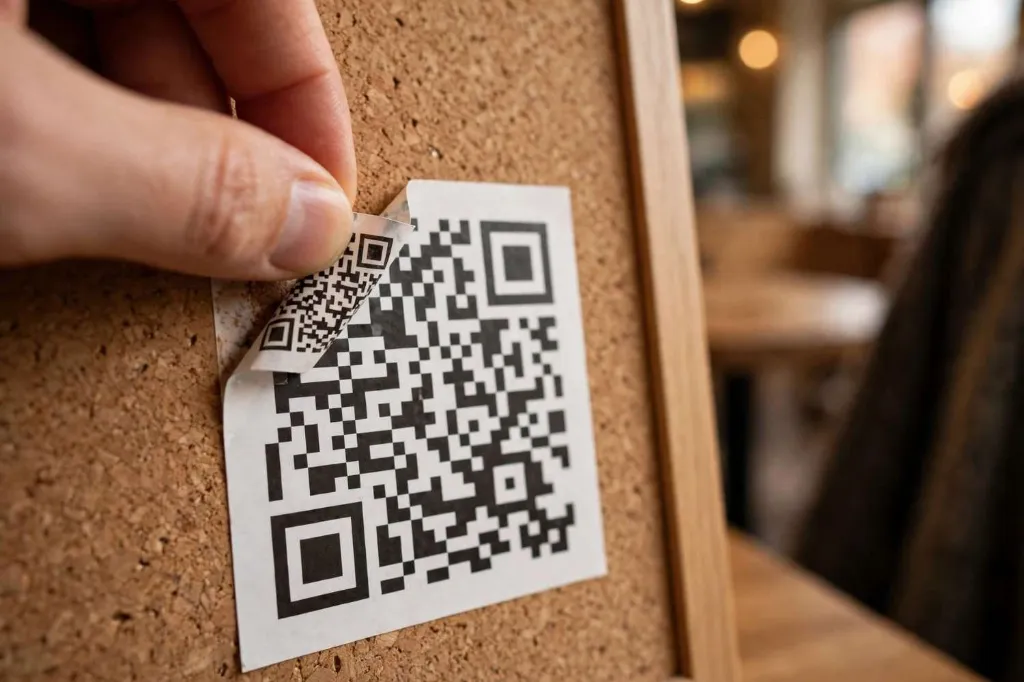
A code in a public place needs a regular check. A fake sticker pasted over a genuine code is a known pattern, and a swapped code can connect a guest to a network run by someone else. Before scanning a code in a cafe or hotel, check that it sits flush with the board and does not look stuck on top of something else, and check that the network name in the prompt matches the place. A real WiFi QR code only asks to join a network. If it opens a website, asks for a login, or tells the user to download something, stop. Forget the network when leaving a place that will not be visited again, and avoid banking on a shared network unless the site uses HTTPS.
How to make a WiFi QR code that actually scans
A code that scans reliably is a code that is big enough, dark enough, and clear enough for a phone camera to read at the distance people will use it. Most codes that fail in the wild fail for the same handful of reasons, and all of them are easy to avoid.
Size it for the scanning distance. A code read from arm's length at 30 cm needs to be roughly 3 cm across, and a code on a shop window read from three metres away needs to be closer to 30 cm. When in doubt, go bigger. A code printed smaller than about 2 cm across will fail on many phones, especially in low light.
Keep the contrast high. A dark pattern on a light background is what every scanner expects. Avoid low-contrast pairings such as mid-grey on white entirely.
Do not crop the quiet zone. The blank margin around the pattern is part of the code, not decoration. Cameras use it to find the edges. Two modules is the practical minimum, and four is safer on busy backgrounds. QR codes that actually scan covers sizing, contrast, margins, and error correction in order.
Frequently Asked Questions
How to connect QR code to WiFi without an app?
Yes. On an iPhone running iOS 11 or later and on an Android phone running Android 10 or later, the built-in Camera app reads a WiFi QR code and offers to join. Open the Camera app, point it at the code, and tap the prompt.
Why does my phone not show a Join prompt when I scan a WiFi QR code?
The most common cause is a camera setting. On an iPhone, check Settings, then Camera, and make sure Scan QR Codes is switched on. On Samsung phones, check the same setting, or use the QR scanner tile in Quick Settings. If the setting is on, move to 15 to 20 cm away and change the angle to cut glare.
Can I scan a WiFi QR code from a screenshot?
Yes. On an iPhone, open the screenshot in Photos, then touch and hold the code, and tap the prompt to join. That needs iOS 15 or later on an iPhone XS or XR or later. On Android, open the image in Google Photos or Google Lens, tap the Lens icon, and Lens will decode the code and offer to connect.
How do I create a WiFi QR code for my home network?
On Android, open Settings, then Network and internet, then Internet, tap the gear icon next to the connected network, then tap Share. On an iPhone, open Settings, then Wi-Fi, tap the information icon next to the connected network, then tap Share Password. For a printed card, write the WiFi string, paste it as plain text into a QR generator, and download the code.
Does a WiFi QR code show my password?
Yes, in effect. The code holds the password in plain text, so anyone who photographs the code, or decodes it with a QR reader, can read the password. That is why a code should be made for a guest network, not a main home network.
Can a WiFi QR code work for a hidden network?
Yes, if the code is made correctly. Add H:true to the WiFi string, so the phone knows to search for the network by name even though it is not broadcast. Some phones still refuse to join a hidden network automatically, even with H:true, and in that case add the network by hand.
Can I use a WiFi QR code on a laptop?
It depends on the laptop. Windows 11 version 24H2 and later can scan a WiFi QR code with the Camera app in Barcode mode. A Mac has no built-in way to join WiFi by scanning a code. Share the password from a nearby iPhone that is already connected, or type the password in by hand.
What happens if I change my WiFi password?
The old code stops working, and a new code must be made. A WiFi QR code is static, so the password inside it cannot be updated after the code has been printed. Make a new code with the new password, test it on a phone that is not yet connected, and replace the printed copies.
Is it safe to scan a WiFi QR code in a cafe or hotel?
Usually, yes, if the code is checked first. Check that the network name in the prompt matches the place, and that the code does not look like a sticker placed over the real one. A real WiFi QR code only asks to join a network. If it opens a website, asks for a login, or tells the user to download something, stop.
Why does the code scan but the password is wrong?
The network name, password, or security type in the code is wrong, or a special character was not escaped. Check the SSID letter by letter, check that T is WPA for a modern network, and escape any semicolon, colon, comma, double quote, or backslash with a backslash. Regenerate the code and test it on a fresh phone.
Related reading
How to Scan DigiLocker QR Code
How to scan a DigiLocker QR code: the document QR, the login QR and the share QR, how to verify an issued document against the live record, and what to do when a scan fails.
The Uitly Team
How to Make QR Code for Waze Location
How to make a QR code for a Waze location: get the Waze link, encode it as a URL QR with Uitly, and test it before printing.
The Uitly Team
How to Generate a UPI QR Code
How to generate a UPI QR code from your UPI ID, with a fixed amount, in BHIM, or for a current account, plus the settings that decide whether it works in every app.
The Uitly Team