
How to Make QR Code for Waze Location
How to make a QR code for a Waze location: get the Waze link, encode it as a URL QR with Uitly, and test it before printing.
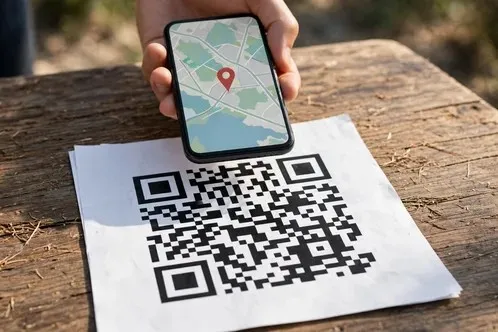
A customer is circling your street, phone in hand, and your shop is two turns away. A typed address can send that person to the wrong end of the road. A QR code fixes that: one scan opens Waze with your exact spot on the map.
Learning how to make qr code for waze location starts with one clear idea: the QR code is only a wrapper. Inside it sits a Waze link, and the link is what does the work. Get the link right and the code works. Get it wrong and no amount of styling will save it.
How to make QR code for Waze location: which Waze QR code do you mean?
Two different codes share the Waze name, and each one does a different job. Most of the confusion in search results comes from mixing them up.
| The code | Where it appears | What it does |
|---|---|---|
| QR you make for others | On a flyer, a shop window, a business card, or a wedding invite | Anyone who scans it opens Waze directions to your place |
| Live Map QR on your own screen | On waze.com on a computer, when you sign in or save a drive | Sends a planned drive from your computer to your own phone |
Most people searching for this want the first row. The second row is covered later.
One claim needs a clear answer first. Some pages describe a Share menu on the Live Map with a QR Code option, but Waze Help does not list one, so do not rely on it. The QR code the Live Map actually shows is the one for signing in and saving a drive to your phone.
What a Waze location QR code is
A Waze location QR code is a normal QR code that holds a Waze link. When a phone camera reads it, the link opens Waze with a place on the map: the app, if Waze is installed, or the web map in the browser, if it is not.
Waze deep links use the address https://waze.com/ul, with extra details added after it. The most useful form points at exact coordinates, like https://waze.com/ul?ll=40.758895,-73.985131&navigate=yes, where ll is the latitude and longitude and navigate=yes starts navigation straight away.
Waze does not generate a QR code for a location directly in the app. Its Share and Send location features give you a link, and a QR generator turns that link into a QR code.
Before you make it: what you need
A QR code fails most often because the setup is wrong. Get these things right first.
- The exact place. Know the street address and, better still, the coordinates. A place with no Waze listing, a new shop, or a house on a long road needs coordinates, because a name search can land on the wrong spot.
- A Waze link for that place. Made in the app, on the Live Map, or built by hand from coordinates.
- Two phones, one with Waze and one without. Test the finished code on a real phone before printing it, and check what happens for people without the app, who should still see the place on the web map.
- A QR generator open in a browser. The Uitly QR generator is used here, and it makes URL codes, which is what a Waze link needs.
How to get the Waze link
Three ways get you a link for a place. All three end with the same thing, a web address you can paste into a QR generator.
From the Waze app. To send a location from a saved place, open Waze, tap the search bar, tap Saved, tap the send icon next to the saved place, then tap Send location. From navigation history, swipe up, long tap the place, then tap Send location. These steps are from Waze Help.
While driving, the route bar has a share option. Tap it and choose an app, or copy the link. That sends a live drive link, which ends when the drive ends, so do not use it for a shop or a venue.
From the Live Map on a computer. Go to the Live Map, and under Driving directions enter the place as a starting point or destination. Then click the permalink icon in the bottom corner of the screen to copy the link to the location. That is the route Waze Help describes for sharing a link to a specific location. For a route, enter a starting point and a destination, pick one of the up to three routes Waze offers, then share the link.
Building the link from coordinates. If the place has no listing, or the address search keeps landing on the wrong spot, build the link by hand: https://waze.com/ul?ll=latitude,longitude, plus &navigate=yes if you want Waze to start navigation as soon as the link opens. For example, https://waze.com/ul?ll=40.758895,-73.985131&navigate=yes points at Times Square in New York and starts navigation to it.
Find coordinates by long tapping a spot in the Waze app or on the Live Map, and check them first.
How to make the QR code with Uitly
This is the seven-step flow, using the Uitly QR generator. It takes about a minute.
- Open the Uitly QR generator at uitly.io/qr-code-generator.
- Choose the Website URL type. A Waze link needs the URL type, not plain text, email, or phone.
- Paste the Waze link into the content box.
- Shorten the link first if it is long. The Uitly URL shortener gives a simpler pattern, and lets you change where the short link points later without reprinting.
- Style the code. Set the colours, size, quiet zone, and error correction level. Keep the pattern dark on a light background, with a clear white margin, called the quiet zone, around it. Two modules is the practical minimum, and four is safer on a busy background.
- Check the preview at the size it will be used.
- Download the code. Grab a PNG for a web page, a slide, or a social post, and an SVG for anything going to a printer, because it stays sharp at any size. There is no watermark, and no scan limit.
One honest limit belongs here. Uitly has no native location QR type and no dynamic QR type. A Waze QR made with Uitly is a URL QR that encodes the waze.com link, and the short-link step above is the only way to change the destination after printing.
https:// vs waze://: which link to encode
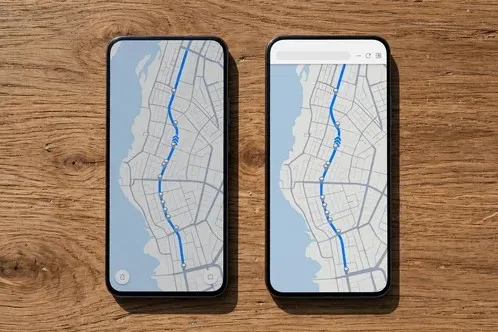
This is the choice that decides whether the code works for everyone or only for some people. The two link forms look similar, and they behave very differently.
| Link form | Phone with Waze | Phone without Waze | Desktop |
|---|---|---|---|
| https://waze.com/ul?ll=lat,lng | Opens the Waze app | Opens the Waze web map | Opens the Waze web map |
| waze://?ll=lat,lng | Opens the Waze app | Nothing happens | Nothing useful happens |
Whether Waze opens as an app or a web page depends on the device: on a desktop it opens as a web page, on a mobile device with the app installed the app opens, and without the app it opens as a web page. The waze:// scheme is only for app-to-app use, when you are sure the app is installed. If it is not, tapping the link does nothing at all.
For a printed QR code, always encode the https:// form. A printed code goes to strangers, and you cannot know which of them have Waze installed, so give every one of them something useful, the app or the web map. The waze:// form should only appear inside an app of your own, where you have already checked that Waze is installed.
Coordinates vs address search: why ll= is more reliable than q=
A Waze link can point at a place in two ways: coordinates, with the ll= parameter, or a search query, with the q= parameter, like https://waze.com/ul?q=66%20Acacia%20Avenue. Both are valid, and they are not equally reliable.
Coordinates point at one exact spot, with no spelling to get wrong and no second place with the same name. That is why ll= is the better choice for a house, a new shop, a farm gate, or any place with no Waze listing of its own.
An address search depends on Waze finding the right match. That works for a well-known place with a listing, and badly for a new business or a name shared by two places in the same city. If you do use q=, check the pin it opens, not just the name it shows.
You can combine the two, like https://waze.com/ul?q=66%20Acacia%20Avenue&ll=45.6906304,-120.810983&navigate=yes, where the address gives the name and the coordinates give the exact spot.
How to test the QR properly
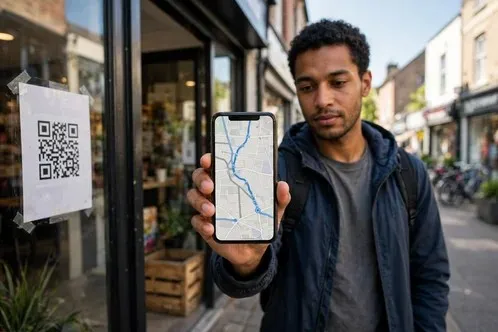
A code that has never been scanned is not finished. Test it the way a stranger would use it, not the way its maker would.
- Scan it with a phone camera, not with a QR app. Point it at the code and tap the link that appears.
- Test on iPhone and on Android. The two systems hand links to apps in different ways, so a code that opens the app on one can open the browser on the other.
- Test with Waze installed and without it. Borrow a phone, or remove Waze from a test phone for a minute. Without the app, the link should still open the web map.
- Test the printed copy, not just the screen. Print it at the size it will be used, and scan it from the distance people will actually stand at. The code should be about a tenth of that distance, so a code read from 30 cm needs to be roughly 3 cm across, and one on a shop window read from three metres away needs to be closer to 30 cm.
If a test fails, change one thing at a time. A code that fails on every phone is usually too small or too low contrast. A code that fails on one phone only is usually a link problem.
How to use it: print, shopfront, flyer, business card, wedding invite
A Waze location code earns its keep where people are out and about, with a phone in hand and no time to type an address.
A shop or cafe puts it in the window, so a passer-by scans it and walks in with directions already running. A flyer carries it at the bottom, next to a short line like "Scan for directions". A bare square gets ignored, because it answers no question.
A business card carries it on the back, so a new contact can find the office without asking for the address again. A wedding invite carries it beside the venue name, so guests arrive at the right hall. A delivery note carries it so a driver finds the gate, not just the street.
For print, download the SVG, which stays sharp at any size. For a screen, a slide, or a social post, use the PNG. Put the code on a plain light background, never over a photo.
QR not opening Waze, wrong place, link not working
| Problem | Likely cause | Fix |
|---|---|---|
| Scans but opens the browser, not the app | Waze is not installed, or the link opened inside another app's browser | Install Waze, or open the link in the phone browser |
| Nothing happens when scanned | The code encodes a waze:// link and Waze is not installed | Rebuild the code with the https:// form |
| Opens the wrong place | The link used q= and Waze matched a different place | Rebuild the link with ll= coordinates |
| Opens the right street but the wrong door | The coordinates are slightly off, or the search picked a nearby match | Check the pin on the Live Map |
| QR will not scan at all | Too small, low contrast, no quiet zone, or glare | Print it bigger, keep it dark on light, leave a clear margin, avoid glare |
| Live Map QR will not scan | Screen brightness too low, or the camera is too close | Turn up the brightness and hold the phone back slowly |
| Link worked yesterday, fails today | The link was a live-drive link, which ends when the drive ends | Use a place permalink, not a live-drive link |
If it scans on one phone and not on another, the print is the problem. If it scans on every phone but opens the wrong place, the link is the problem.
Static vs dynamic: why a printed Waze QR cannot be changed if you move
A QR code made with Uitly is static. The destination is baked into the pattern, and the code keeps working forever. That is also its limit: if the shop moves, the printed code still points at the old place.
There is one honest workaround, built into the generator page itself. Instead of encoding the Waze link directly, encode a Uitly short link that points at the Waze link. The short link can be changed at any time, so every printed code follows along. That is worth doing for anything printed in bulk, like flyers or cards.
Even with that workaround, a move still needs a check. Change the short link, then scan a printed copy and confirm the pin has moved. And if the business moves far, reprint anyway, because the old code will keep circulating in photos.
Is sharing a Waze location QR code safe?
A place QR code shares a location, so it deserves the same care as any address printed in public.
A place permalink has no expiry date published by Waze. That is fine for a shop, a venue, or an event, because those places are meant to be found. It is not fine for a home address on a public flyer, because anyone who photographs the code can pass it on.
A live-drive link is different. It follows a journey in real time, and it stops when the drive ends. Never share one publicly, and never put one on a printed flyer. It is for letting one person follow one trip, sent to that person directly, not published.
A fake QR is the other risk. A sticker placed over a real code can send people somewhere else, so check a printed code before it goes up, and check it again after it has been out for a while.
How to make your own QR code for a page or link with Uitly
The same generator makes codes for anything else a business needs, in the same minute.
Uitly's generator offers four types: a website URL, plain text, an email address, or a phone number. There is no native location type and no payment type, so a code for a menu or a catalogue is a URL code, just like the Waze code.
The codes are free for commercial use, with no watermark and no scan limit. PNG suits a web page, a slide, or a social post. SVG suits anything going to a printer. The error correction level controls how much of the code can be damaged and still scan: Low recovers about 7 percent and High about 30 percent, but High makes the pattern denser, so use it only when the code may sit on an uneven or dirty surface.
The Uitly article on QR codes that actually scan covers size, contrast, quiet zones, and testing in detail. The same rules apply here.
Frequently Asked Questions
How to make QR code for Waze location in the Waze app?
Waze does not make a QR code for a location inside the app. Get the link from the app with Send location, or from the Live Map with the permalink icon, then paste it into a QR generator like Uitly.
Does Waze have a built-in QR code generator for locations?
No. Waze gives you a link, not a code. The Live Map shows a QR code for signing in and saving a drive to your own phone, but that is not a code for sharing a place.
What link should I put in the QR code?
Use the https:// form, like https://waze.com/ul?ll=latitude,longitude&navigate=yes. It opens the Waze app on a phone that has it, and the web map on a phone that does not. Do not encode a waze:// link, because it does nothing on a phone without the app.
Is a Waze location QR code free to make?
Yes. The Waze link costs nothing, and the Uitly QR generator is free, with no watermark and no scan limit.
Will the QR code work if the person does not have Waze installed?
Yes, if you encoded the https:// form. The link opens the Waze web map in the browser, and the person can see the place and get directions there.
Why does my Waze QR code open Google Maps instead?
It does not, unless the code encodes a Google Maps link, which opens Google Maps, not Waze. To point Waze users at the same spot, take the coordinates and build a waze.com/ul?ll= link instead.
Can I change the destination after printing the QR code?
Not directly, because a static QR code has the destination baked in. The workaround is to encode a Uitly short link instead of the final Waze link. You can then change where that short link points, and every printed code follows along.
How big should a printed Waze QR code be?
About a tenth of the distance people will scan it from. A code read from 30 cm needs to be roughly 3 cm across, and one on a shop window read from three metres away needs to be closer to 30 cm. When in doubt, go bigger.
Does a Waze location QR code expire?
A place permalink has no expiry date published by Waze, and a static QR code keeps working forever. A live-drive link stops when the drive ends, so never use one on a printed code.
Can I use a Waze QR code on a wedding invite or a business card?
Yes. Put the code beside the venue name with a short line like "Scan for directions", download the SVG for print, and test a printed copy before sending the invites out.
Related reading
How to Scan DigiLocker QR Code
How to scan a DigiLocker QR code: the document QR, the login QR and the share QR, how to verify an issued document against the live record, and what to do when a scan fails.
The Uitly Team
How to Connect QR Code to WiFi
How to connect QR code to WiFi on iPhone, Android, Samsung, Pixel, Huawei, and Windows 11, how to scan a code from a photo, how to make your own code, and why a code will not connect.
The Uitly Team
How to Generate a UPI QR Code
How to generate a UPI QR code from your UPI ID, with a fixed amount, in BHIM, or for a current account, plus the settings that decide whether it works in every app.
The Uitly Team