
How to Scan DigiLocker QR Code
How to scan a DigiLocker QR code: the document QR, the login QR and the share QR, how to verify an issued document against the live record, and what to do when a scan fails.
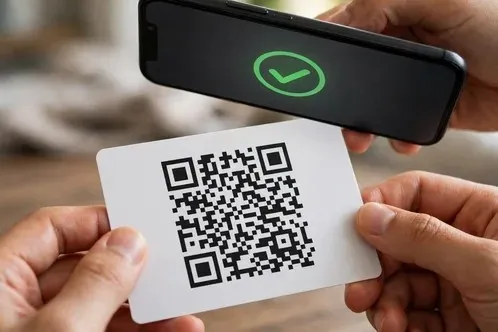
A traffic officer asks for a driving licence, a college asks for a marksheet, or a bank asks for proof of identity, and the document is on a phone, not in a folder. The QR code printed on it settles the question. Scan it the right way and the live record opens, with the issuer name and a valid signature. Scan it the wrong way and the result proves nothing.
Learning how to scan digilocker qr code starts with one clear idea: the code on an issued document is a pointer to the live record held by the issuer, and the scan is only useful when it is checked against that record.
How to scan digilocker qr code: which DigiLocker QR code do you mean?
Three different codes share the DigiLocker name, and each one does a different job.
| The code | Where it appears | What it does |
|---|---|---|
| Document QR | Printed on an issued document, such as a driving licence, RC, or marksheet | Opens the live record or the issuer verification page, so the document can be checked |
| Login QR | On the DigiLocker website login screen, on a computer | Logs the user into DigiLocker web through the mobile app, without typing a password |
| Share QR and vCard QR | On a shared document link, or on a digital ID card | Lets a recipient open a shared issued document, or check a digital ID |
Most people who search for this want the first row, the document QR. The other two are covered later, so a reader can jump to the one that matches the code in front of them.
What a DigiLocker QR code is
A DigiLocker QR code is a machine-readable pointer to a digital record. On an issued document, the code carries a reference to the record held by the issuing department, and the scan opens that record or the issuer verification page.
DigiLocker is a Government of India platform run by the National e-Governance Division (NeGD) under the Ministry of Electronics and Information Technology (MeitY), under the Digital India programme.
The part that gives the code its weight is the digital signature. An issued document is fetched from the issuer, and it carries a Uniform Resource Identifier (URI) generated by the issuer, plus the issuer digital signature. When a scan shows the issuer name, the URI, and a valid signature, the document has been checked against the source.
Issued documents are legally equivalent to physical originals under section 9A of the Information Technology Act 2000, and the MeitY notification of 8 February 2017 recognised them as at par with originals. Access to issued documents carries no fee from NeGD, although optional Premium Drive features, such as extra storage, may carry a charge.
Before you scan: what you need
A scan fails most often because the setup is wrong, not because the code is broken.
- The document itself. A printed copy, a PDF on screen, or the document open in the app. A photo of a photo is the worst option, because glare and blur break the code.
- The DigiLocker app installed. Download it from the normal app store. The in-app scanner is the documented way to verify a driving licence or RC.
- Internet on the phone. Live verification needs a data connection, because the scan has to reach the issuer record.
- A clean, well lit code. Wipe the screen or the paper, and move out of direct glare. A cracked screen or a shadow across the code will stop a scan.
- The details to compare. Know the name, document number, and issuing department before scanning, so the result can be checked against them.
How to scan a QR code on a DigiLocker document
Use the DigiLocker app scanner for this flow. It is the documented verification route for transport documents.
- Open the DigiLocker app and log in. Use the mobile number and OTP, then the security PIN, if asked.
- Tap Scan QR under Utilities. The scanner opens. On some versions the icon also appears on the home screen or in quick actions.
- Point the phone camera at the code. Hold the phone steady, about 15 to 20 centimetres from the code.
- Wait for the code to be read. Do not tap the screen or move the phone while the scanner works.
- Read the result screen. The app opens the live record or the issuer verification page. Check the issuer name first.
- Compare the details. Match the name, document number, and issuing department against the document in hand. If any differ, treat the document as unverified.
- Check the signature status. For a PDF, open the signature panel and look for a valid signature.
A generic phone camera can also read some document codes. A CBSE marksheet code, for example, can be scanned with any QR scanner app, and it redirects to the CBSE verification page. For a driving licence or RC, the documented method is the DigiLocker app scan, so use the app even if the camera also reads the code.
How to scan a DigiLocker QR code to log in on a computer
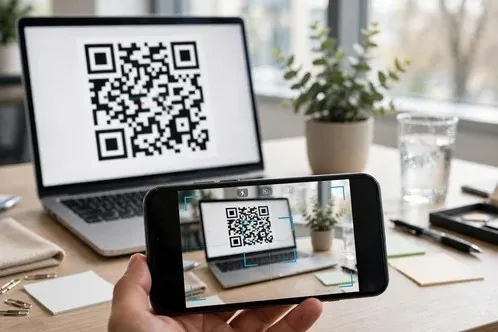
The login QR is a different code from the document QR. It does not prove a document. It proves that the person holding the phone is the account holder, and it logs that person into DigiLocker on a computer.
- Open the DigiLocker website on the computer. Go to digilocker.gov.in and click Login.
- Select Login using QR Code. The website shows a QR code on the login screen.
- Open the DigiLocker app on the phone. Log in first, so the app knows whose account is being used.
- Tap Scan QR under Utilities. The same scanner used for documents opens.
- Scan the code on the computer screen. Hold the phone steady until the app reads the code.
- Tap Allow on the login request. Tap Allow only if the login was started on the computer in front of the user.
- Finish any OTP or PIN check the app asks for. The computer session then opens, logged in as the account holder.
A login QR is a login mechanism, not permission for another person to access the account. Never scan a login QR that appears in a message, on a poster, or on someone else screen.
How to verify what the scan shows
A scan that opens a page is not the end of the check. A fake code can also open a page. Check these five things, in order.
- Issuer name. The page must name the department or board that issued the document, such as the state transport department or CBSE. A page with no issuer name proves nothing.
- URI. The record must carry a document URI generated by the issuer. That reference links back to the issuer repository.
- Signature valid. The signature status must read valid, from the named issuer. A status that says signature unknown means the reader has not loaded the issuer trust root, or the file has been changed since it was signed.
- Details match. The name, document number, and dates on the live record must match the document in hand, letter for letter. A small difference is a failed check.
- Live record, not a picture. The scan must open the issuer record or verification page, not a photograph of a document. A photograph can be edited.
If the scan opens a page that asks for a password, an OTP, or a payment before showing the record, stop.
Driving licence and RC: what a traffic officer sees when they scan
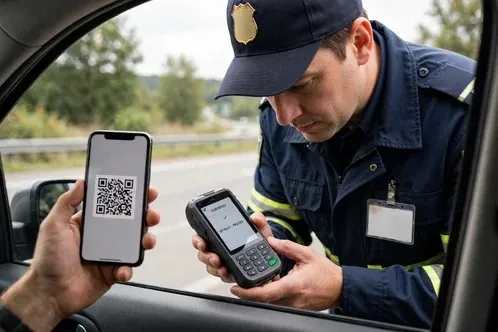
A driving licence or RC shown from DigiLocker is the most common roadside case. The Ministry of Road Transport and Highways (MoRTH) circular RT-11036/93/2018-RS directs enforcement to accept documents shown through DigiLocker and mParivahan as equivalent to physical originals, and not to demand the physical original at the roadside.
When an officer scans the QR on a digital licence or RC with the DigiLocker app, the scan validates the MoRTH digital signature, or opens the live record. The officer sees the details as held by the transport department. The same record can also be checked in mParivahan.
Three things matter at the roadside. First, the document must be in Issued Documents, fetched from the transport department, not an uploaded scan. Second, the phone screen must be bright and the code clean, so the officer can scan it. Third, the details on the live record must match the driver and the vehicle. If the record shows a different name, a different vehicle number, or an expired licence, the scan has done its job by showing the mismatch. An uploaded photograph of a licence, kept in DigiLocker Drive, has no issuer signature to check.
Marksheet and certificates: QR scan vs verification portal with Document ID
A marksheet or certificate has two verification routes, and they lead to the same place.
The QR route is the faster one. Open the PDF of the marksheet, and scan the QR code with the DigiLocker app scanner or, for a CBSE marksheet, with any QR scanner app. The code redirects to the CBSE verification page, which shows the official result.
The portal route is the fallback when the code will not scan. The verifier visits the DigiLocker verification page, enters the Document ID printed on the marksheet, and views the authenticated document from the government server.
Both routes check the same thing: that the marksheet was issued by the board, carries the board digital signature, and matches the live record. A marksheet uploaded by the student, rather than fetched from the board, has no board signature and cannot be verified either way. For a PSEB certificate, the same in-app QR scanner cross-check applies, for certificates issued from 2019 onwards.
How to share your own document as a QR code or link (and the 7-day share link)
Sharing a document from DigiLocker is different from sending a photograph of it. A share keeps the issuer signature intact, so the recipient can verify the document.
- Open the document under Issued Documents. Only an issued document can be shared with its signature intact.
- Tap Share. Choose the issued document share option, not a screenshot or a downloaded copy.
- Pick a link or a QR code. A link opens the live, issuer-signed copy. A QR code does the same when scanned.
- Set the duration. A shared link is time-bound, with a default of 7 days. The recipient must open it inside that window.
- Send it to the named recipient. Send the link or code to the person or office that asked for it.
- Ask the recipient to verify it. The recipient opens the link or scans the code, and checks the issuer name, URI, and signature.
Some institutions also issue a vCard QR digital ID, generated from the profile below the profile photo in the institution system. The QR can be checked at an exam hall, on transport, or at a bank. It is a digital ID, not a document. Do not print a shared PDF and re-scan it to send on. Printing and re-scanning strips the signature. Send the share link or the original PDF instead.
QR code not scanning, wrong details, or "signature unknown": what to do
Most scan failures have a short fix.
| Problem | What to check first | What to do next |
|---|---|---|
| QR code will not scan | Light, glare, dirt, damage, and distance | Clean the code, move it out of glare, hold the phone steady, and try again |
| Code scans but opens nothing | Internet on the phone, and whether the code is a document code | Turn data on, retry with the DigiLocker app scanner, and check the code is on an issued document |
| Wrong details on the result | Name, document number, and issuer on the live record | Treat the document as unverified, and ask the holder to fetch it again from the issuer |
| "Signature unknown" | The PDF reader, and whether the file was printed and re-scanned | Open the original PDF in a reader that shows signature panels, or verify through the app or the issuer portal |
| Document not in Issued Documents | Whether the issuer is listed, and whether the fetch failed | Fetch it again from the issuer in the app, and check the name and details match Aadhaar |
| Login QR will not scan | The code on the computer screen, and the app scanner | Refresh the login page for a fresh code, open Scan QR under Utilities, and scan only a code on a device the account holder opened |
| Share link has expired | The date the link was sent | Ask the holder to share the document again, because a time-bound link cannot be reopened |
If the code still will not scan, use the portal route. Enter the Document ID on the DigiLocker verification page, or check the record in mParivahan for a licence or RC.
Is scanning a DigiLocker QR code safe?
Yes, when the code is scanned with the DigiLocker app and the result is checked against the live record. A QR code is only a picture of a link, and the risk comes from a code that has been swapped or copied, and from a verifier who accepts a picture without checking it.
Check the code before scanning it. Look for a sticker pasted over the original code, or a code that has been replaced on a printed document. A sticker swap is the oldest QR fraud. If the code looks pasted on, do not trust the scan.
Check the web address the scan opens. A document verification page must be on digilocker.gov.in or on the issuer own domain. A page on an unrelated domain, or a page that asks for a password, an OTP, or a payment, is not a verification page. Close it and verify through the DigiLocker app instead.
Never scan a login QR that was not opened by the account holder. A login QR on a poster, in a message, or on a stranger screen can hand a session to someone else. Scan only a code on a device the account holder opened on purpose. Never share an OTP, password, or security PIN with anyone who says they need it to verify a document. Verification needs the QR code and the live record, not the account holder credentials.
How to make your own QR code for a page or link with Uitly
A DigiLocker QR code is made by the issuer, and it cannot be made with a general QR generator. A different kind of QR code is useful for everyday sharing, and that one can be made in a minute with Uitly. The Uitly QR generator offers URL, text, email, and phone only, and it has no DigiLocker or document type. What it can make is a QR code that opens a page or a link.
- Pick the page the code should open. Choose a page that already exists on the web, such as a profile page, a form, or a help page.
- Open the Uitly QR generator. Go to the Uitly QR generator and choose the URL option.
- Paste the link. Paste the full link, and check that it opens the right page before making the code.
- Create and download the code. Make the code, download it as a PNG or SVG file, and save the original file.
- Print it and test it. Print the code at a size that scans from a normal standing distance, and test it with two different phones.
Keep the two kinds of code apart. A DigiLocker document code proves a government record, and a Uitly code opens a web page. For tips on making a code that scans first time, see QR codes that actually scan, and for the payment side, see how to generate a UPI QR code.
Frequently Asked Questions
How to scan digilocker qr code?
Open the DigiLocker app, tap Scan QR under Utilities, point the phone at the code on the issued document, and read the live record that opens. Check the issuer name, the document URI, and the signature status, and compare the name and document number.
Can I scan a DigiLocker QR code with my phone camera?
For some documents, yes. A CBSE marksheet code can be scanned with any QR scanner app, and it redirects to the CBSE verification page. For a driving licence or RC, use the DigiLocker app scanner.
What does the QR code on a DigiLocker document prove?
It proves that the document was issued by the named issuer and matches the live record, when the scan shows the issuer name, the document URI, and a valid digital signature. A code on an uploaded file proves nothing, because it has no issuer signature.
Is a DigiLocker document legally valid?
Yes, an issued document in DigiLocker is legally equivalent to a physical original under section 9A of the Information Technology Act 2000, and the MeitY notification of 8 February 2017. An uploaded document is not, because it was not fetched from the issuer.
Can a traffic officer accept a driving licence on DigiLocker?
Yes. The MoRTH circular RT-11036/93/2018-RS directs enforcement to accept documents shown through DigiLocker and mParivahan as equivalent to physical originals. The officer can scan the QR with the app, or check the live record in mParivahan.
How do I verify a CBSE marksheet with a QR code?
Scan the QR code on the marksheet PDF with the DigiLocker app scanner or any QR scanner app, and read the official result on the CBSE verification page. If the code will not scan, enter the Document ID printed on the marksheet on the verification page instead.
How long does a DigiLocker share link last?
A shared link is time-bound, with a default of 7 days. The recipient must open it inside that window. After it expires, the holder must share the document again.
Why does my document show "signature unknown"?
That usually means the PDF reader has not loaded the issuer trust root, or the file was printed and re-scanned after it was signed. Open the original PDF in a reader that shows signature panels, or verify through the app or the issuer portal.
Is DigiLocker free to use?
Yes, for core use. No fee is charged by NeGD for access to issued documents. Optional Premium Drive features, such as extra storage, may carry a charge.
Can someone misuse a DigiLocker QR code?
A document QR code only opens the live record, so it cannot move money or log anyone in. A login QR is different, and it must never be scanned unless the account holder opened it on purpose. Never share an OTP, password, or security PIN with anyone who asks for it to verify a document.
Related reading
How to Connect QR Code to WiFi
How to connect QR code to WiFi on iPhone, Android, Samsung, Pixel, Huawei, and Windows 11, how to scan a code from a photo, how to make your own code, and why a code will not connect.
The Uitly Team
How to Make QR Code for Waze Location
How to make a QR code for a Waze location: get the Waze link, encode it as a URL QR with Uitly, and test it before printing.
The Uitly Team
How to Generate a UPI QR Code
How to generate a UPI QR code from your UPI ID, with a fixed amount, in BHIM, or for a current account, plus the settings that decide whether it works in every app.
The Uitly Team